
IADS 5 Mobile Tutorial
Overview & Mobile Platform
IADS 5 is the U.S. Army’s official mobile application for viewing Interactive Electronic Technical Manuals (IETMs) — engineered specifically for iOS and Android smartphones and tablets. Developed by AMCOM (U.S. Army Aviation and Missile Command) at Redstone Arsenal, IADS 5 brings the power of desktop-grade technical data to your fingertips, whether you are in the motor pool, on the flight line, or deployed out in the field.
Hypori BYOD & Cloud Container Deployment
IADS 5 is deployed to the Army's Bring Your Own Device (BYOD) program, Hypori. This allows soldiers and civilian personnel with an active Army 365 account to access authorized IETMs directly on personal iOS and Android devices within a secure virtual workspace.
- Storage Management: Hypori virtual environments are allocated 8GB of storage for applications and local data. To optimize storage, users can acquire datasets directly from the LDAC ETM website or transfer
.iadsfiles via Microsoft Teams or OneDrive.
Cross-Platform Capabilities
The following features are supported across all IADS 5 mobile environments:
- History: Instant access to previously visited work packages across multiple manuals.
- Bookmarks & Categorization: Anchored private/public markers with custom search tags.
- Notes & Critical Safety Messages (CSM): Annotations with DTG/Message Number tracking for safety callouts.
- Search: Search across text, part numbers, NSNs, and CAGE Codes.
- Equipment Configuration Filtering: Filter technical manual steps based on active system models.
- Interactive Troubleshooting: Dynamic diagnostic flowcharts with Yes/No/Undo branching logic.
- Interactive PMCS: Pass/Fail state logging for Preventive Maintenance Checks and Services.
- RPSTL Parts Interactivity: Synchronized 2-way callout-to-table highlighting.
- Multimedia Integration: Native playback of MP4 video and MP3 audio clips.
- Adaptive Responsive Layouts: Auto-rotation between portrait and landscape modes.
Screen Layout & Mobile UI
The IADS 5 user interface is optimized for touchscreen gesture navigation and collapsible guideposts:
-
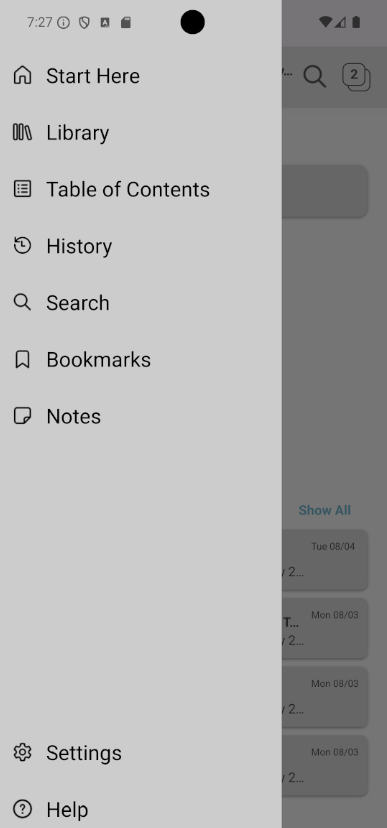
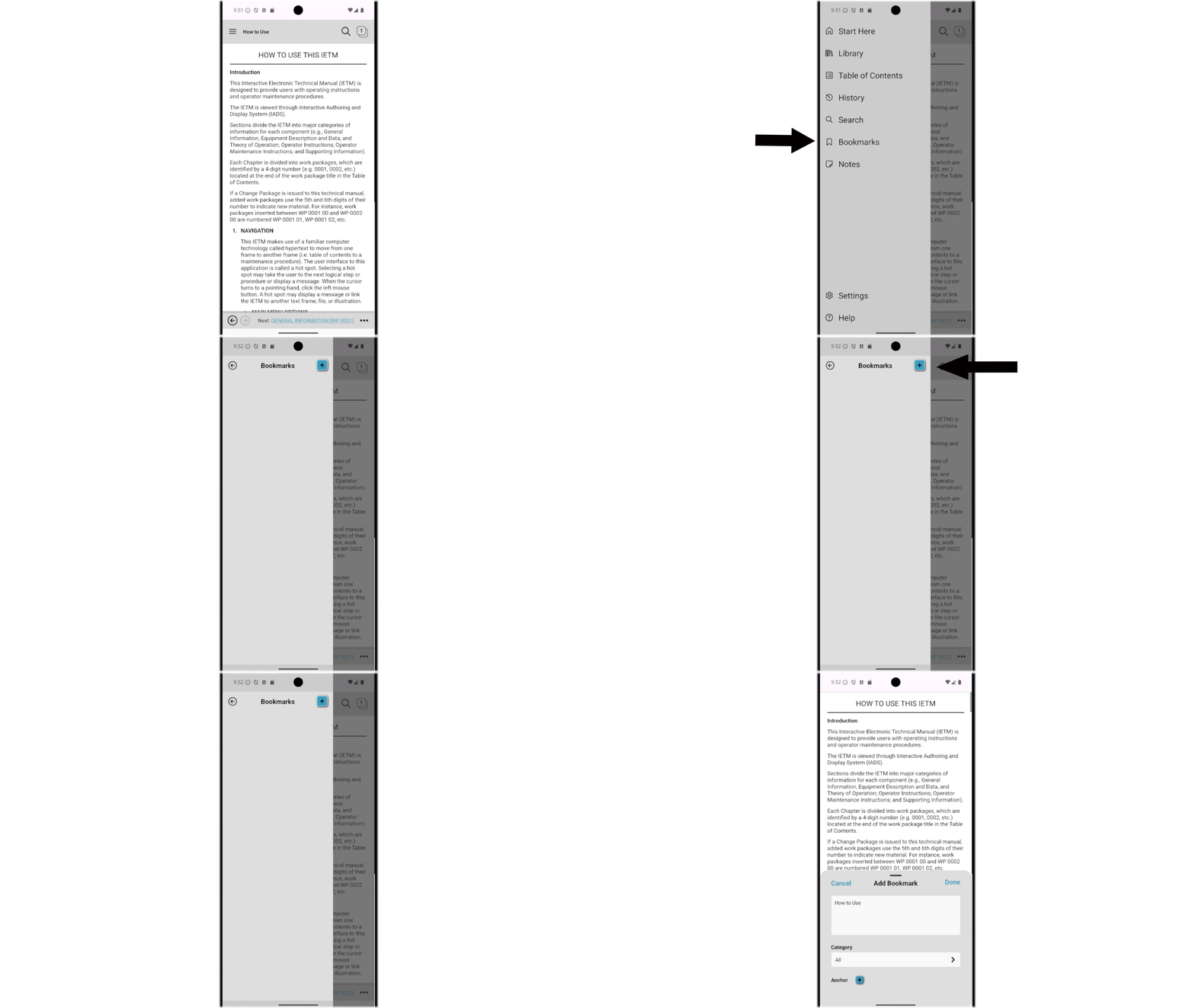
Navigation Drawer / Guidepost Panel: Slide out from the left menu icon to access Start Here, Library, Table of Contents, History, Search, Bookmarks, and Notes.
-
Header Bar: Prominently displays the current dataset title, search, and tab count.

-
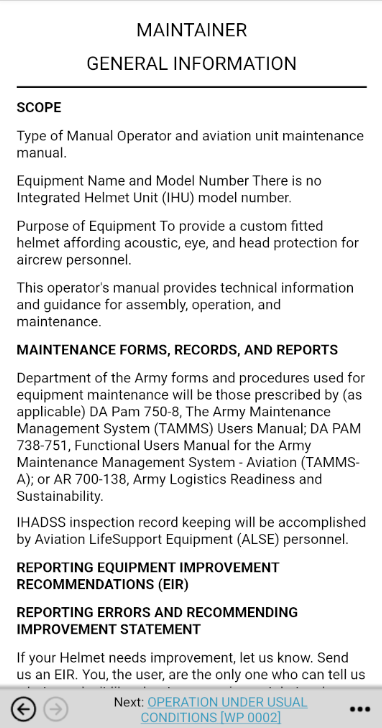
Content Pane: Displays the active dataset, interactive warnings/cautions, and inline figure links.
-
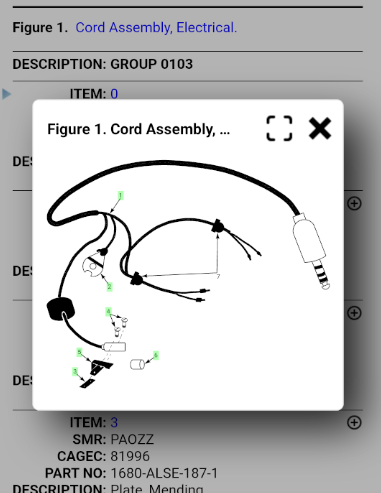
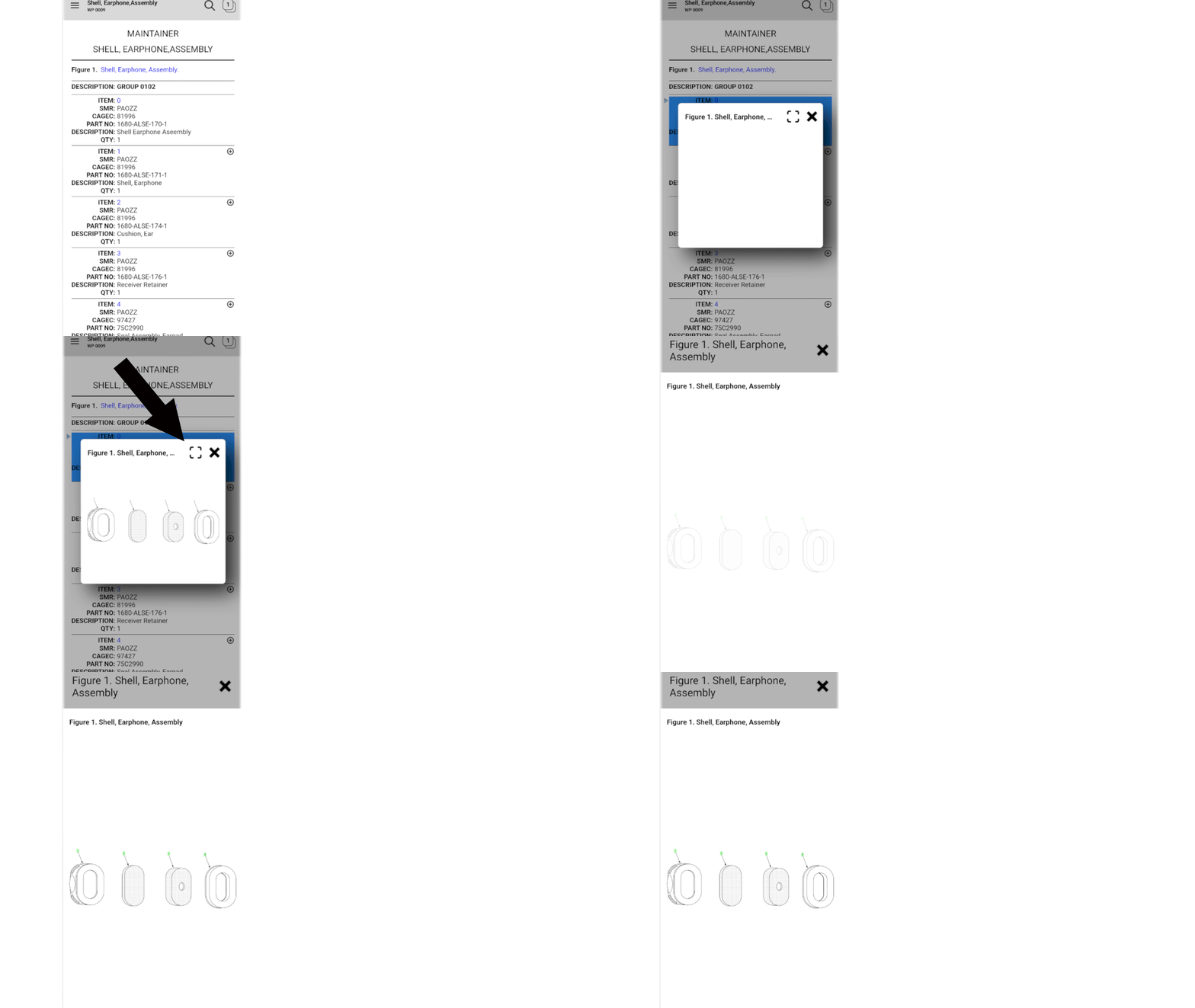
Pop-up Graphic Pane: Displays high-resolution vector illustrations (SVG/CGM) adjacent to procedure text.
-
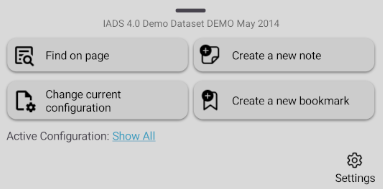
Bottom Action Bar: Includes controls including Back/Forward arrows, Next Work Package active links, and the Ellipses (...) Menu for creating notes or bookmarks on the fly. Perform searches on the page, create notes/bookmarks, and change active configuration.

Main Menu & Guideposts
In IADS 5, navigation is structured around slide-out Guideposts accessible from the primary hamburger menu icon (☰) at the top-left of the screen.
1. Start Here Guidepost
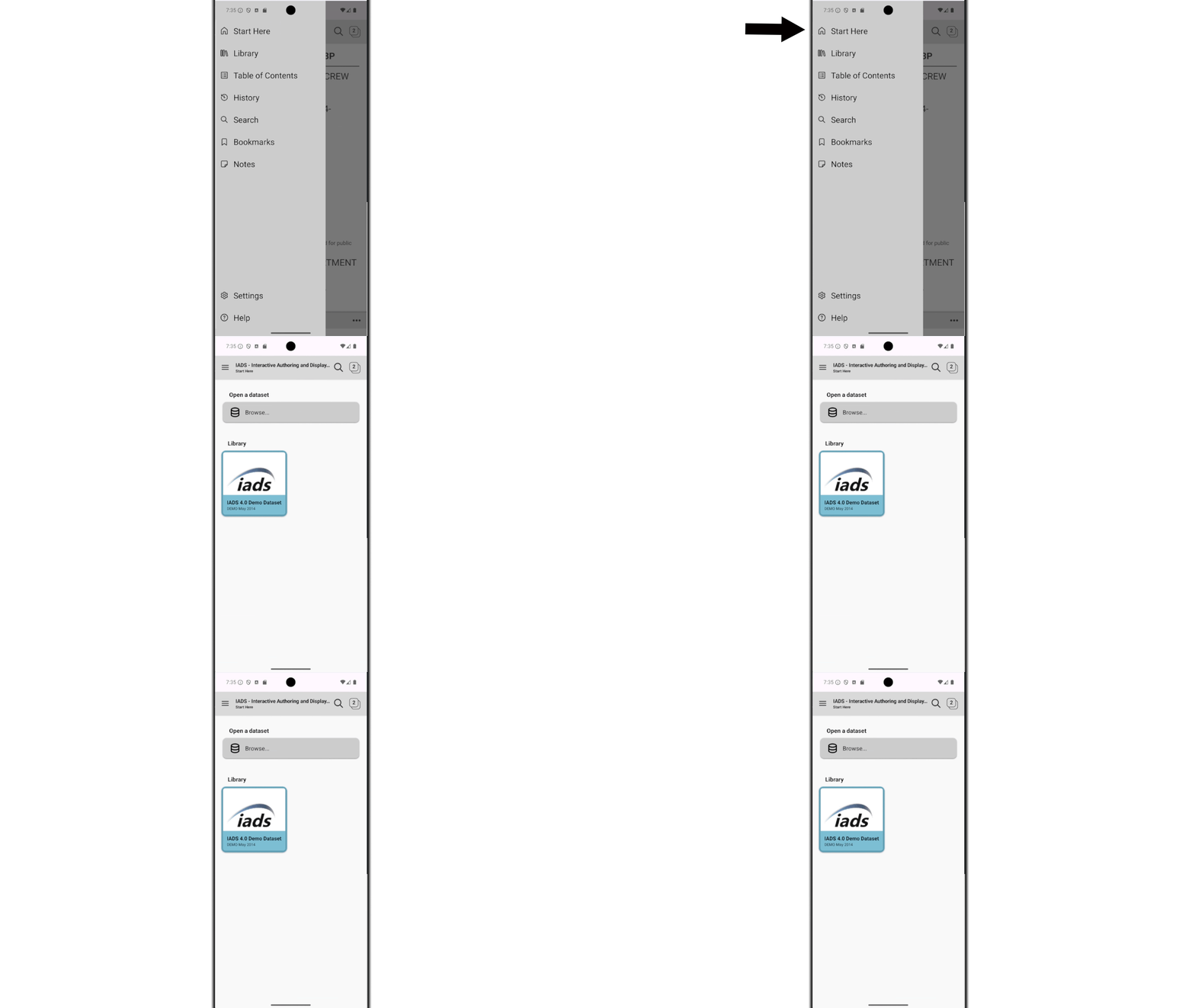
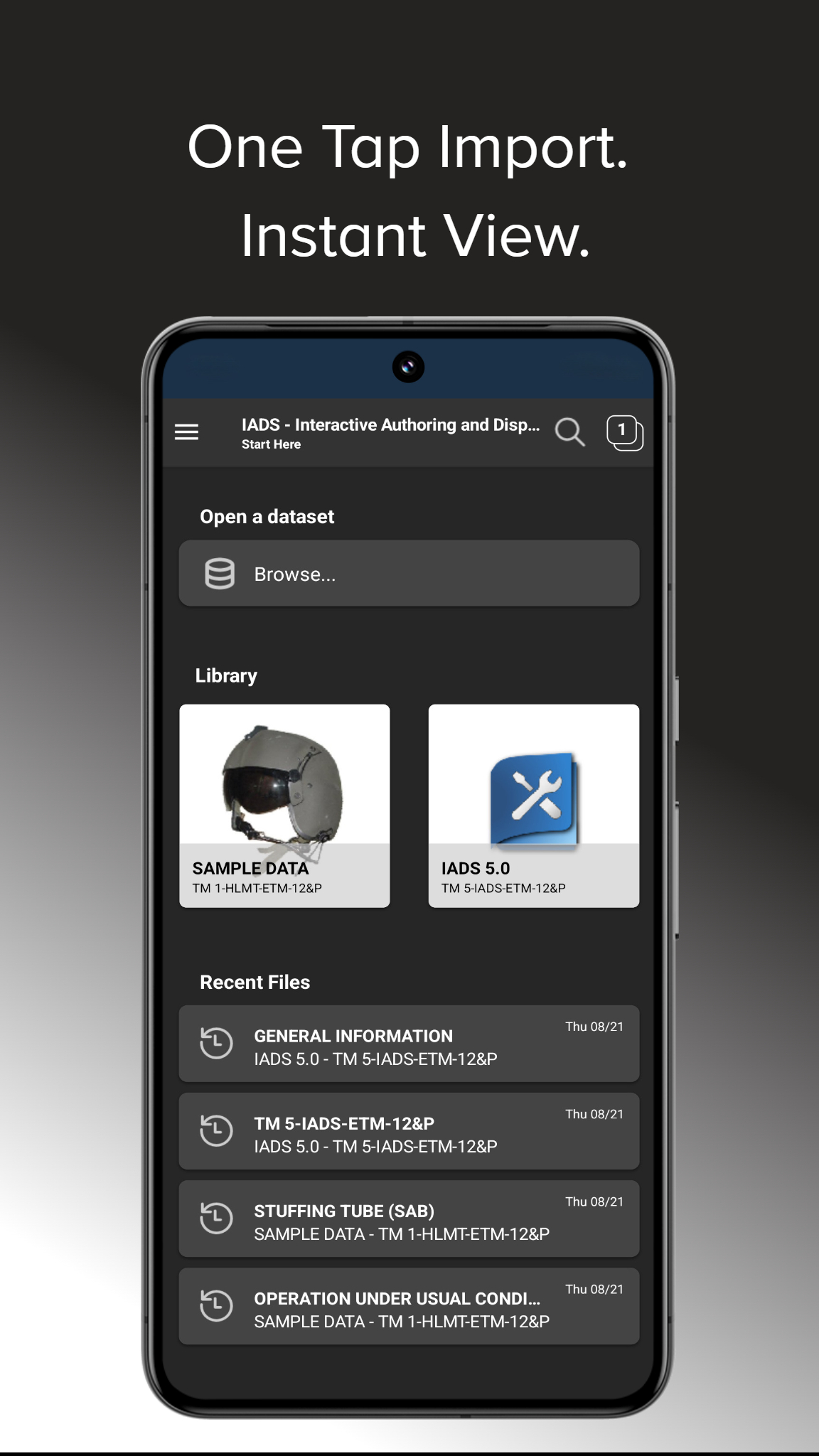
The Start Here window serves as the primary hub when launching the application:
-
Browse an IETM: Opens the local device file manager or Downloads folder to import new
.iadsdatasets.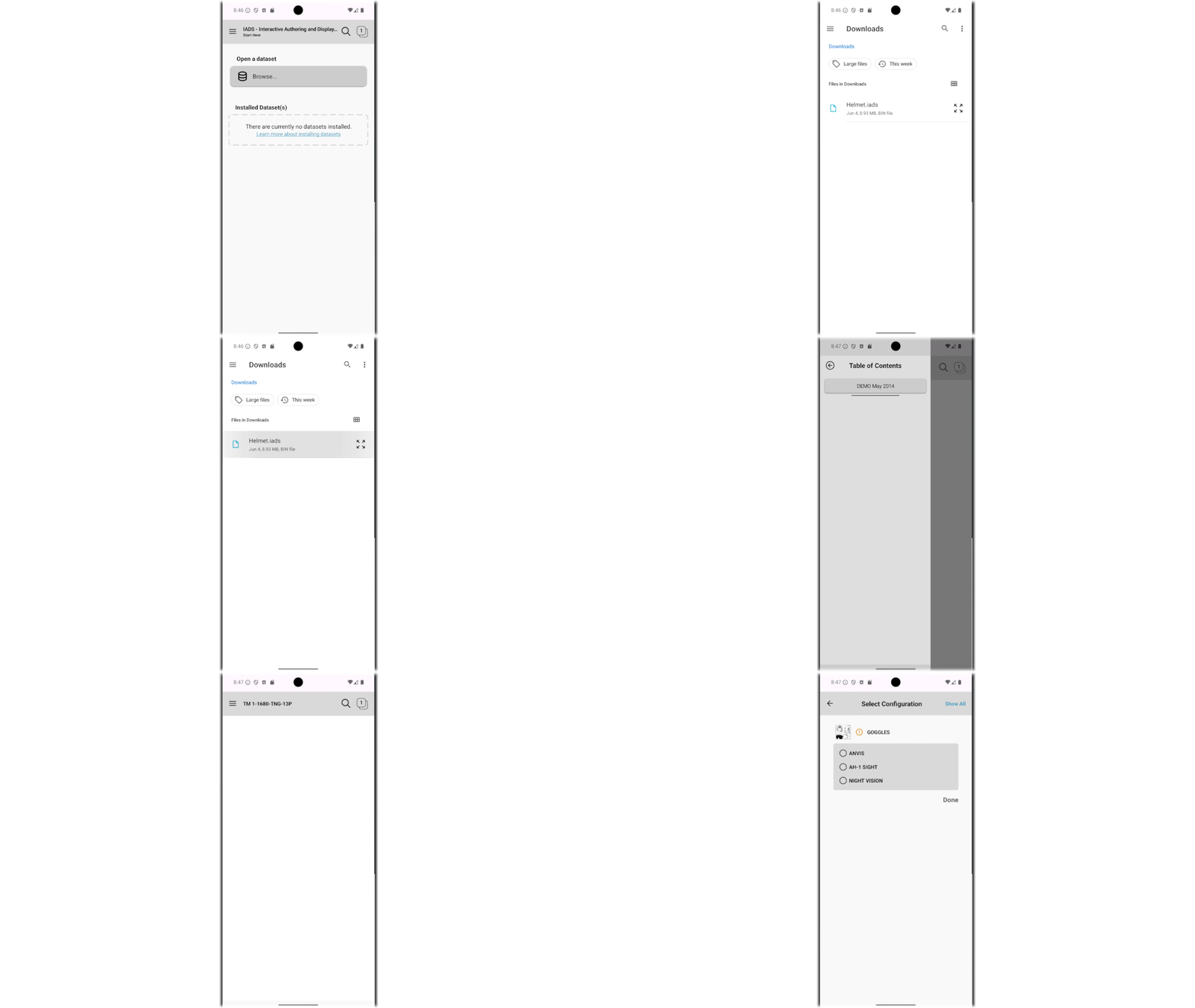
-
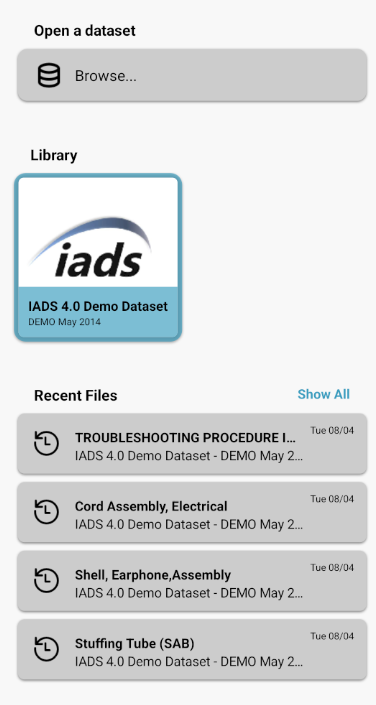
Library Section: Shows all installed IETMs on the device.
-
Recent Files: Displays launch links to the most recently viewed work packages. Select Show All to launch the full History view.
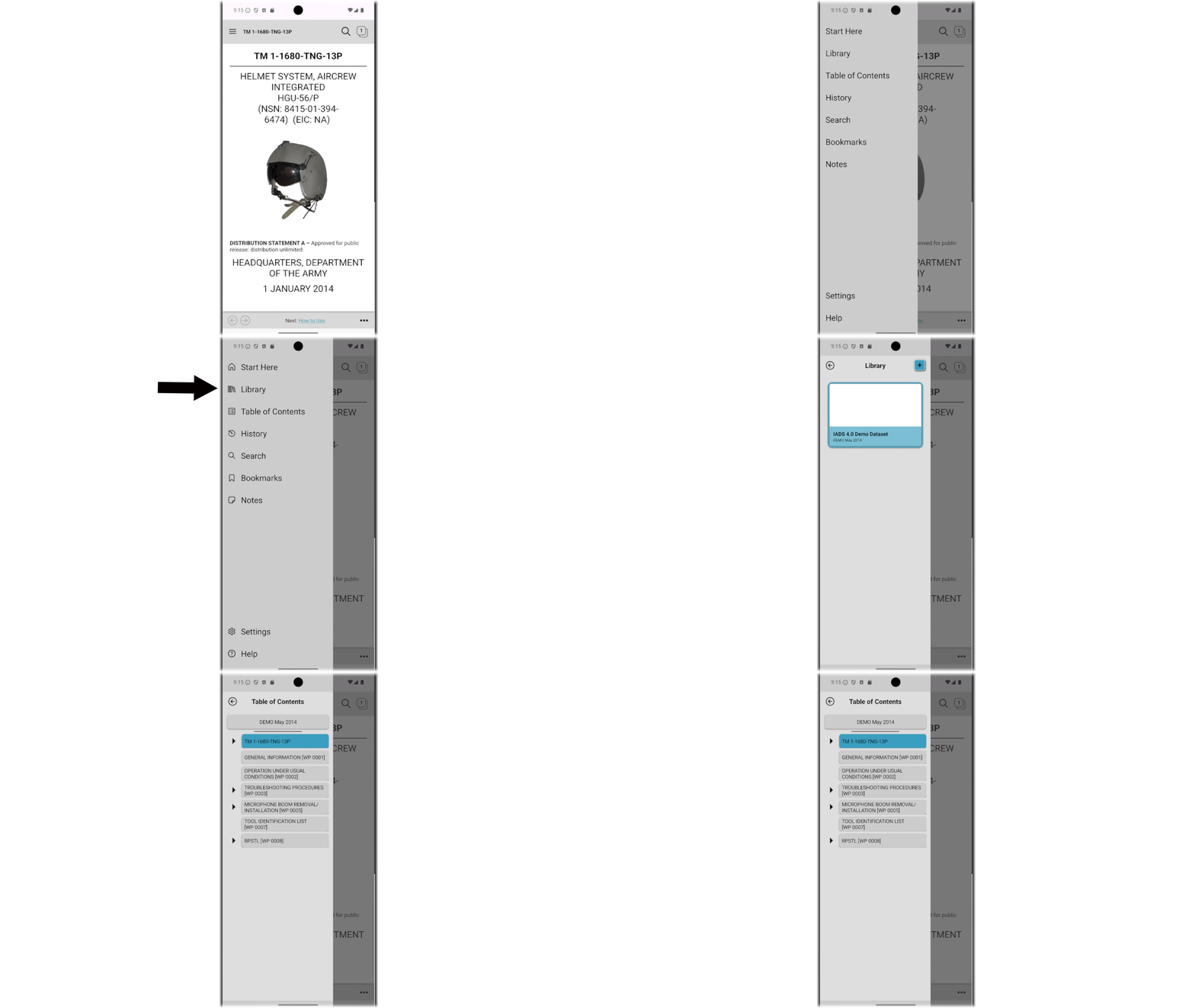
2. Library Guidepost
Manages all locally downloaded datasets on your mobile device:

-
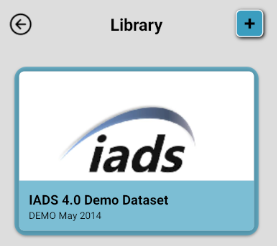
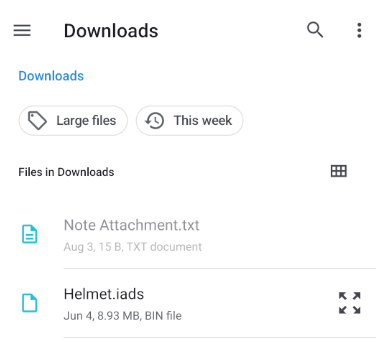
Tap the Plus (+) icon at the top right to select and install new datasets from the device's Downloads directory.
-
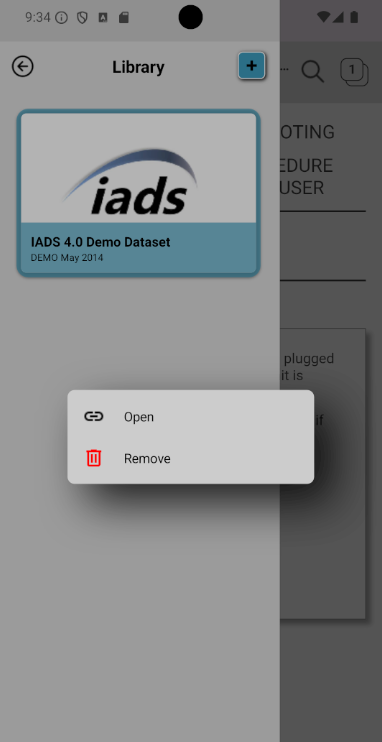
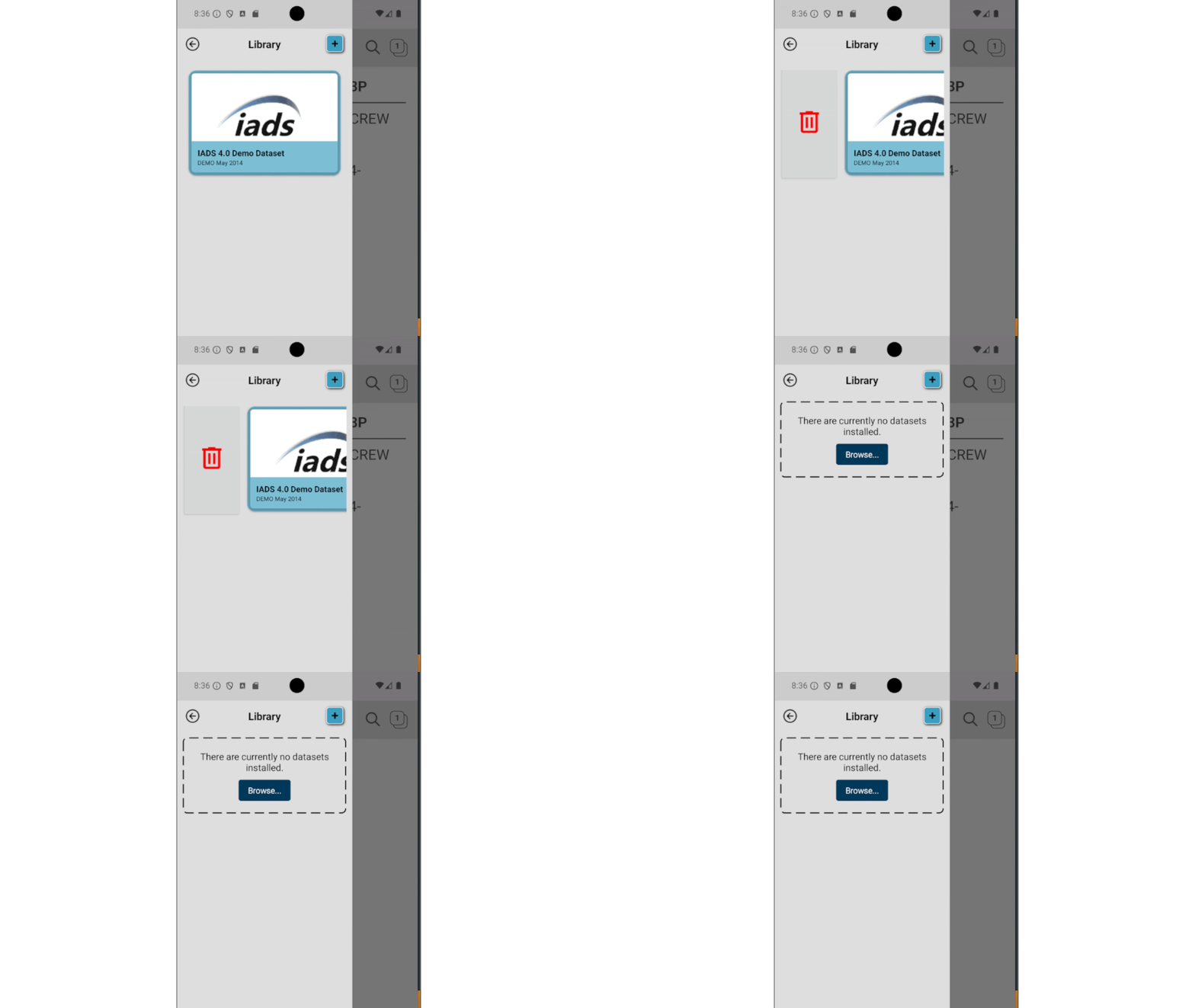
Swipe right or long-press on any dataset item to reveal the context menu: Open or Remove.
3. Select Configuration Menu
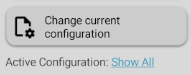
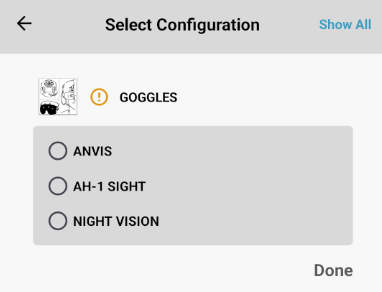
Technical manuals frequently cover multiple equipment configurations. Select File > Select Configuration or tap the configuration name in the status bar to apply custom filtering.
4. User Settings
Accessible via the Guidepost drawer, Settings allows customization of application behavior:
- Display Graphics: Toggle between Display as link only and Display inline with document.
- Open HTML Links: Choose between opening external web hyperlinks inside the IADS 5 embedded viewer or using the device's default system browser (e.g., Safari/Chrome).
- Days to Keep History: Specify retention limits (e.g., 1 day, 7 days, 30 days) to automatically purge older history logs.
Toolbar Icons
| Icon / Control | Name | Mobile Action Description |
|---|---|---|
| ☰ | Menu Drawer Icon | Slides out the main Guidepost panel (Start Here, TOC, History, Notes, Bookmarks, and Settings). |
| ← / → | Back / Forward Arrows | Backtracks or advances through visited work packages in your active history stack. |
| 📄[3] | Tab Counter Badge | Displays the number of active open work package tabs. Tapping opens the Tab Switcher view. |
| ⋮ (Ellipses) | Context Action Menu | Opens quick actions: Create Note, Create Bookmark, and Find on Page. |
| 🔍 | Search Icon | Launches the global search engine with category and section filtering options. |
Returning to previous page using the back arrow:
Keyword search on the same page:
Mobile Touch Gestures Reference
- Pinch-to-Zoom: Pinch outward with two fingers on graphic illustrations to zoom in; pinch inward to zoom out.
-
Long-Press / Context Menu: Touch and hold any work package entry or graphic callout to display popup options (e.g., Open in new tab, Edit, and Remove).
Bookmarks & User Notes
1. Bookmarks Functionality
Bookmarks allow technicians to save key work packages or specific steps for rapid reference:
-
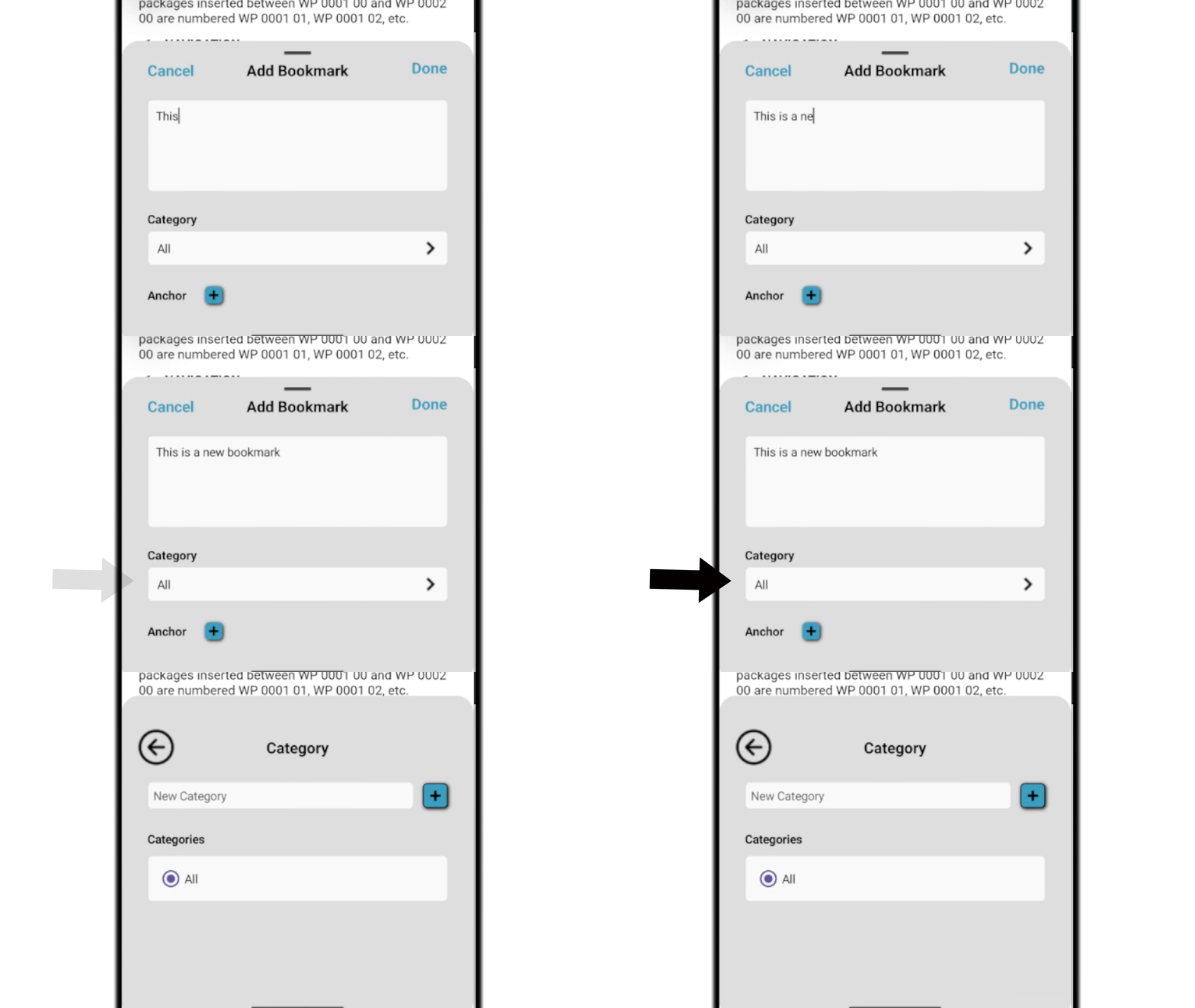
Creating a Bookmark: Tap the Ellipses (...) menu at the bottom right of a work package and select Create a new bookmark, or tap the Plus (+) icon in the Bookmarks guidepost.
-
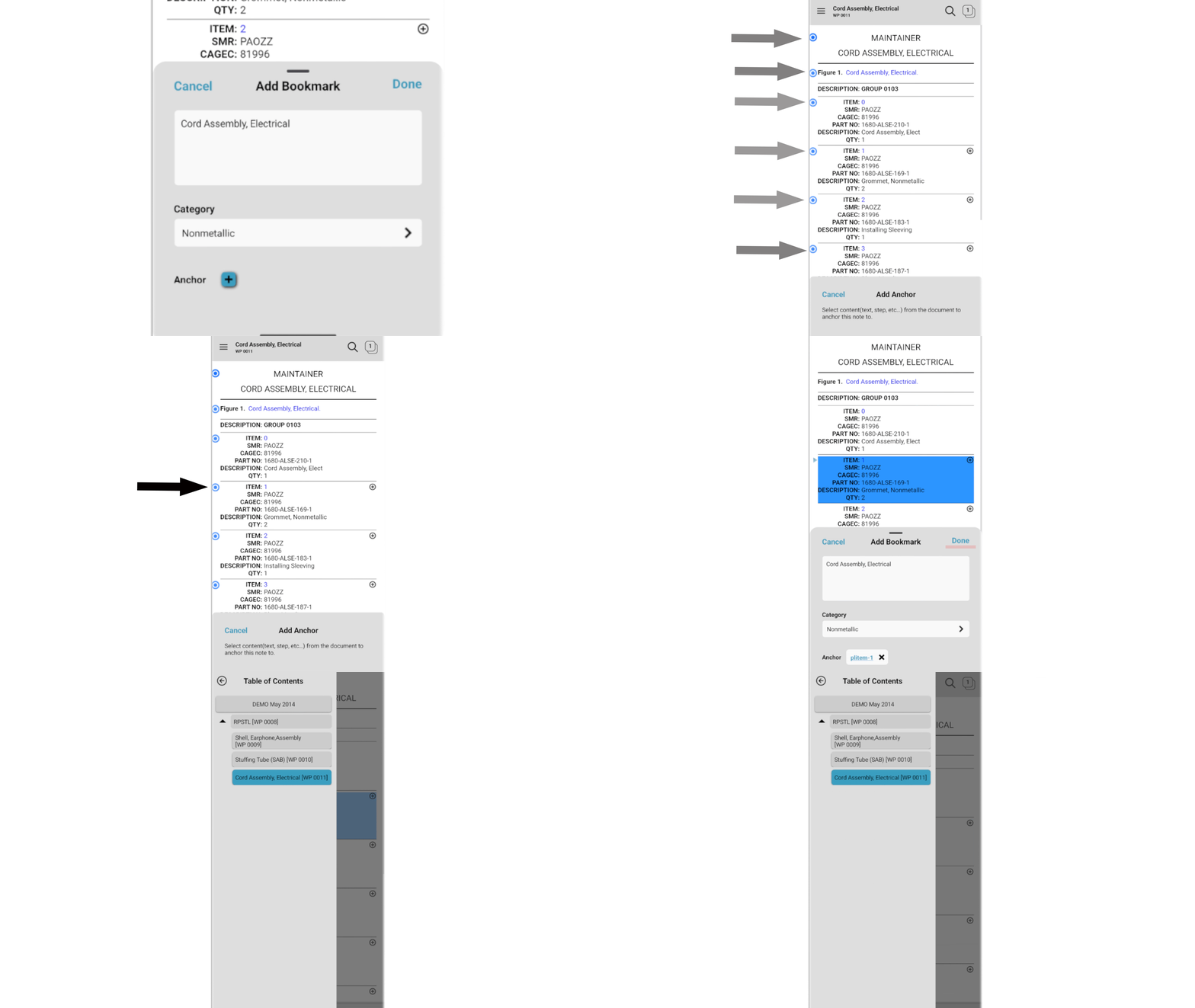
Anchored Bookmarks: Tap the Anchor (+) button in the Add Bookmark dialog, then tap any text or step in the document. A triangular anchor marker (▶) will mark the exact target location.
-
Categories & Filtering: Assign custom categories (e.g., "Cat 1", "Scheduled Maintenance"). Tap the Category filter button at the bottom of the Bookmarks guidepost to filter saved entries.
2. Notes & Critical Safety Messages (CSM)
Notes allow field personnel to attach custom comments, local SOP reminders, or safety warnings directly to technical procedures.
To publish an urgent safety warning, tap Add Note and select Critical Safety Message under Note Type. CSMs require entry of a valid MSG DTG (Date/Time/Group) and MSG No (Message Number). CSM callouts are rendered prominently in bold RED boxes at the top of the work package step.
-
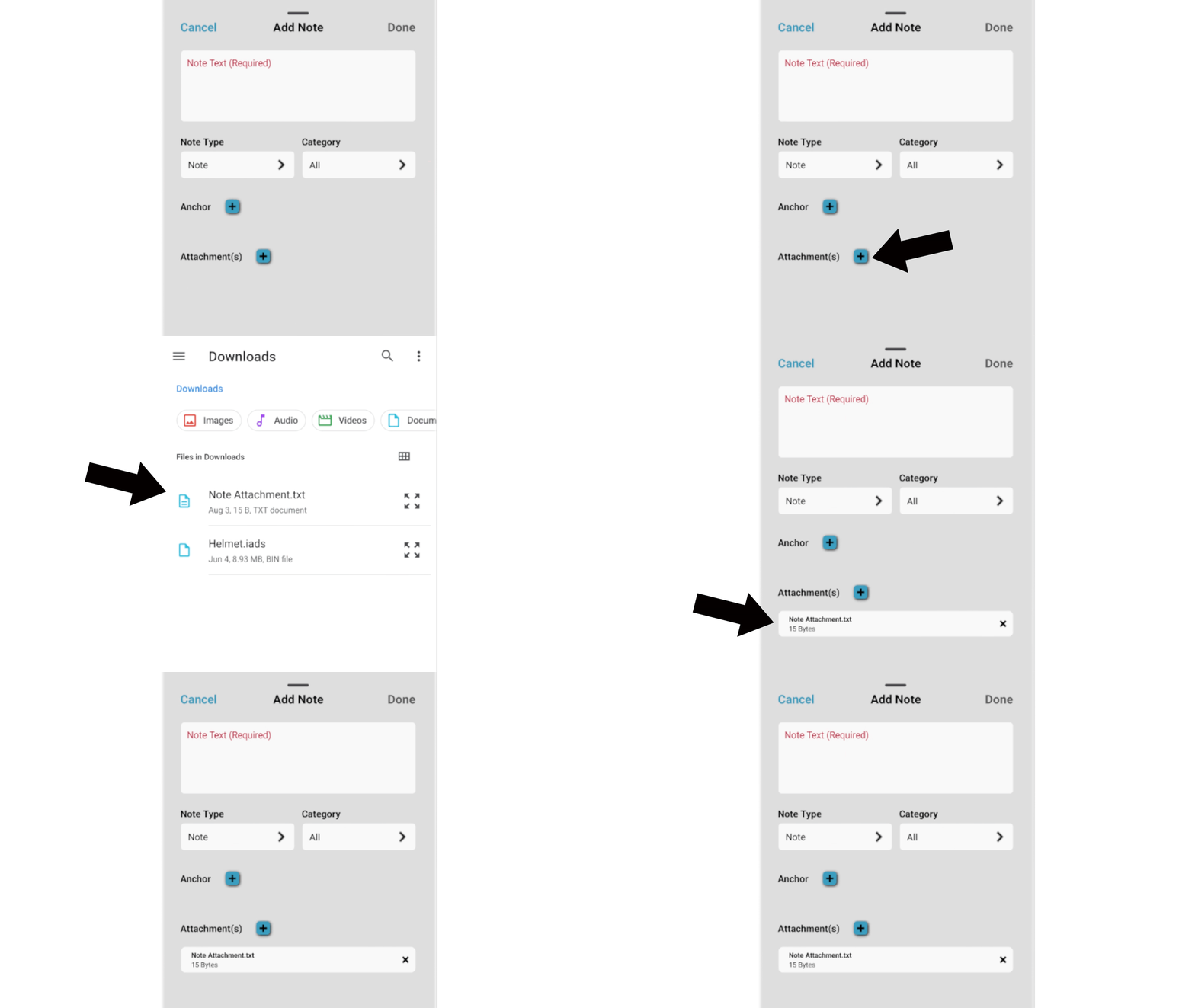
Attachments: Tap Attachment(s) (+) to attach external documents or photos from your device's Downloads directory to a note. Tap attachment links to open them in full screen.
- Persistence: All notes and CSMs persist locally on the device even after closing IADS 5 or restarting your device.
-
Note Import & Export: Tap Share > Note Sharing in the Notes guidepost.
- Export: Select private notes or CSMs and tap Export Notes to save an Excel spreadsheet (
.xlsx). -
Import: Tap Import, locate an exported
.xlsxfile, and restore notes directly into your guidepost.
- Export: Select private notes or CSMs and tap Export Notes to save an Excel spreadsheet (
-
Adding Categories: Go to Category, select your exsiting category listed below or enter a new one and click (+).
- All notes and CSMs persist locally on the device even after closing IADS 5 in the Notes
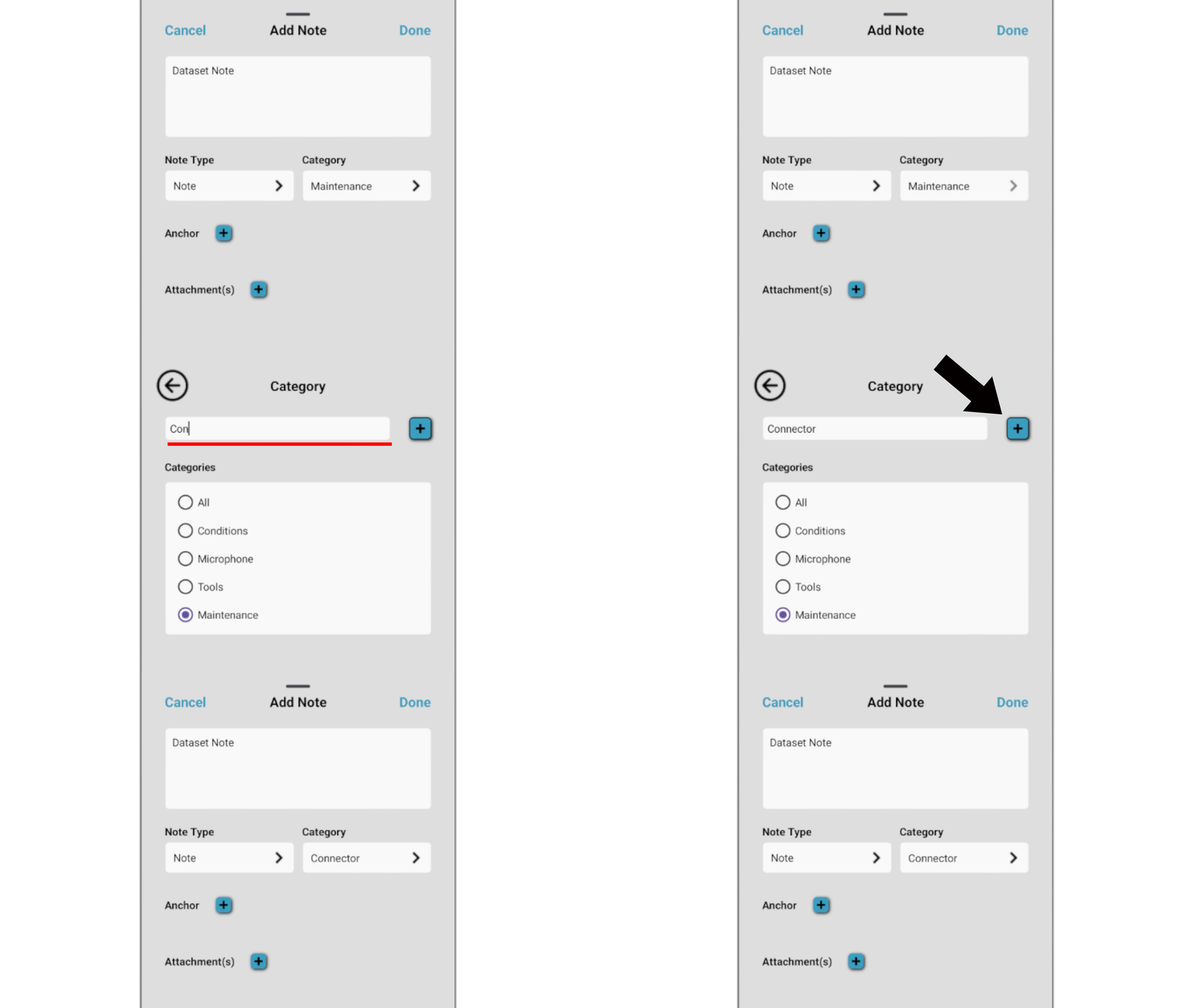
Table of Contents & Tab Functionality
The Table of Contents (TOC) provides hierarchical navigation through the active manual:
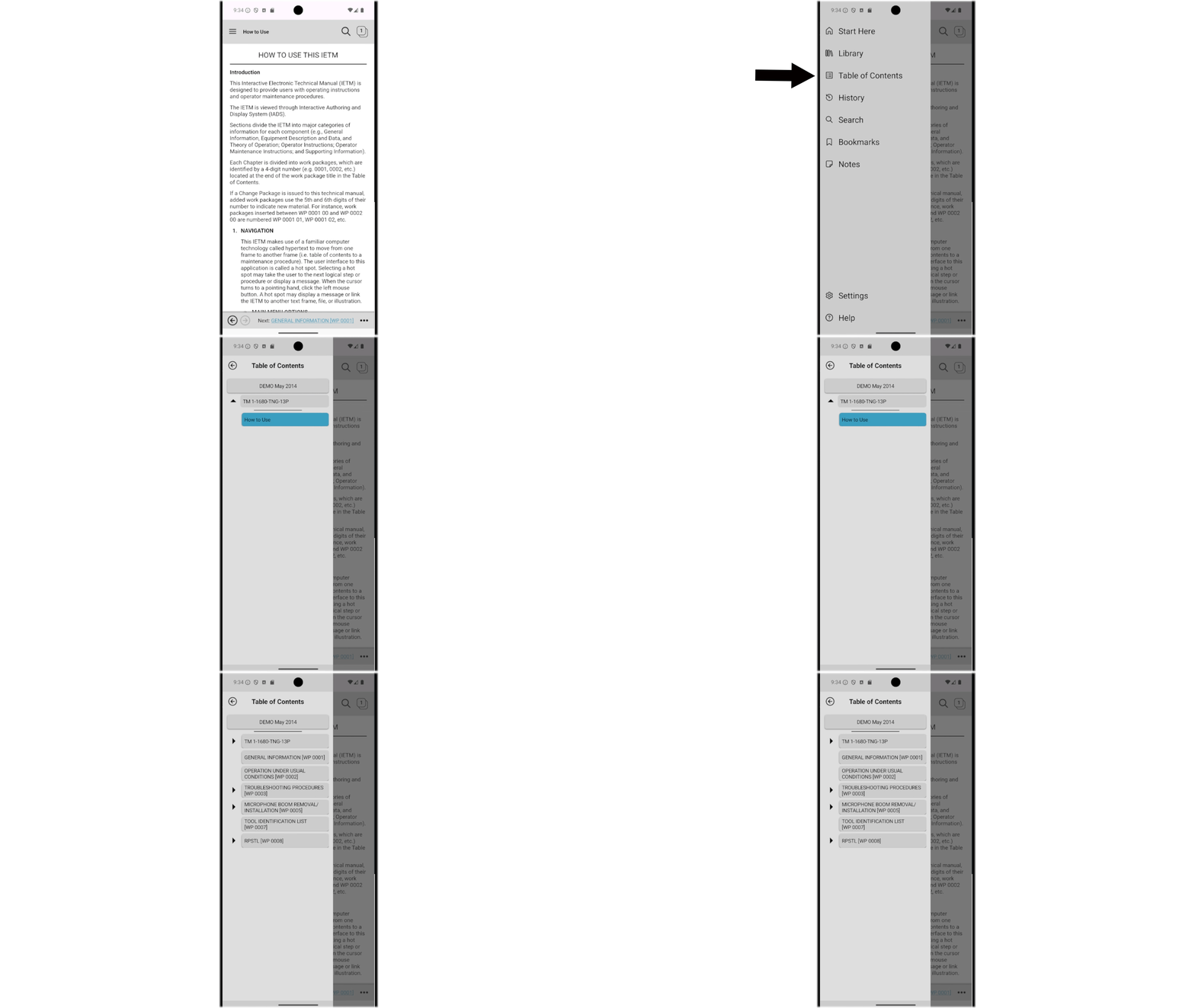
- Tap arrow symbols (►) to expand chapters and (▼) to collapse sections. Active work packages are highlighted with an active element marker bar.
- Opening Multiple Work Packages in Tabs: Long-press any TOC entry and select Open in a new tab from the context menu.
-
Tab Switcher Dialog: Tap the Tab Counter Icon at the top right of the screen (showing the active tab count, e.g.,
3) to view all open work package tabs.- Tap any tab item to instantly bring that work package to the foreground.
- Tap the X button on a tab card to close a single tab.
- Tap Close All at the bottom left to clear all open tabs and return to Start Here.
- Next / Previous Navigation: Tap the active link next to "Next" in the bottom toolbar to advance directly to the subsequent sequential work package in the TOC.
Hotspots & Graphics
Figures and schematics in IADS 5 are fully interactive vector graphics (SVG/CGM) synchronized with procedure steps:
- Opening Graphics: Tap any blue inline link (e.g.,
Figure 1, Cord Assembly) within the document pane to launch the graphic viewer. - Hotspot Callouts: Tap a callout number on the graphic image; IADS 5 automatically scrolls to and highlights the matching item number row in purple within the text table below.
-
Full-Screen Mode: Tap the full-screen expansion icon at the top right of the graphic pane to open high-resolution illustrations in full-screen view. Pinch to inspect intricate wiring schematics.
- Multi-Sheet Navigation: Multi-sheet figures feature dedicated sheet-selection controls at the top of the graphic viewer.
Navigating the RPSTL (Repair Parts and Special Tools List)
RPSTL work packages connect assembly views directly with mandatory parts breakdown tables:
- Graphic Callout to Part Row: Tapping any callout bubble on an exploded RPSTL graphic centers and highlights the corresponding National Stock Number (NSN), CAGE code, and part description in the table below.
- Part Row to Graphic Callout: Selecting any item row in the parts table automatically pans and zooms the graphic pane to highlight the target callout in purple.
Interactive Troubleshooting
IADS 5 transforms complex static fault isolation trees into interactive, decision-driven diagnostic flows compliant with MIL-STD-40051 and S1000D standards:
-
Decision Branching: Diagnostic prompts display prominent interactive response buttons (e.g., YES / NO).
- Undo & Reset Options: Tap UNDO to reverse the previous selection. Tap Reset at the bottom of the work package to clear all diagnostic choices and collapse secondary branches.
-
Toggle Interactive Mode: Tap Toggle Interactive to reveal all diagnostic decision paths simultaneously for comprehensive manual review.
Multimedia & S1000D Support
IADS 5 supports rich multimedia objects embedded directly inside technical procedures:
- Video Procedures: Tap MP4 video links (e.g., removal/installation demonstrations) to launch the native media popup viewer with full play/pause and time-slider controls.
- Audio Annotations: Tap MP3 audio links to play acoustic diagnostics or engine sound reference files directly through the device speaker or headset.
- S1000D Data Modules: Supports S1000D technical publication data structures, interactive checklists, and multimedia object schemas.