Frequently Asked Questions

Q: What does IADS4 cost?
A: IADS has always and will always be provided for free. We do offer fee-based training, software & XML support, and data conversion services.
Q: Will my current IETM data work in IADS4?
A: The answer depends on the standard used to tag the data. IADS4 supports 40051B, 40051-1, 38784, 63029, & S1000D. If you are already using Publication Services to create your IETM, then you should have a seamless transition to the new software.
Q: What graphic formats are supported?
A:
  • CGM
  • SVG
  • PNG
  • JPG
  • BMP
  • G4
  • TIFF
  • GIF
In addition to graphics, IADS4 supports embedded video files (AVI, WMV, MPG).
Q: Is IADS releasable to FMS customers?
A: Yes, the IADS software has no distribution restrictions, and is available for download from a public facing website: https://iads.redstone.army.mil/download.html

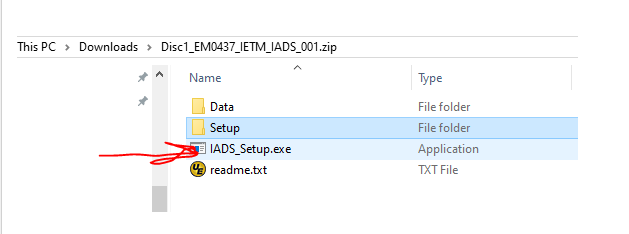
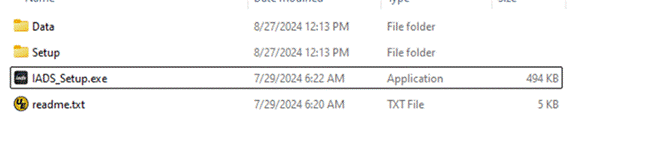
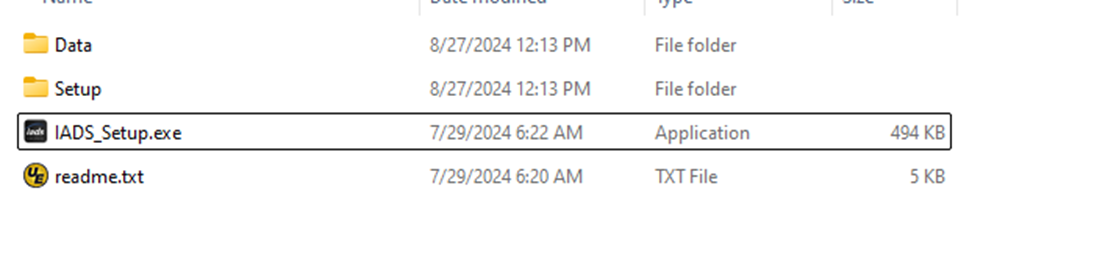
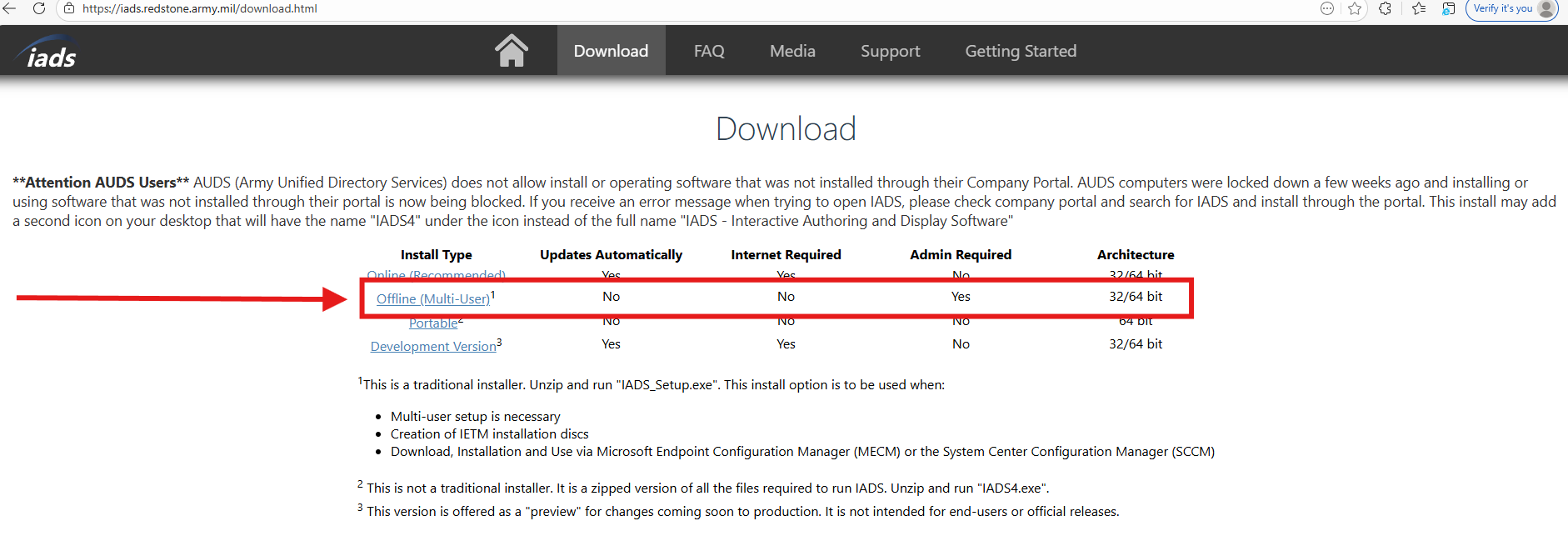
Occasionally foreign IP addresses may be blocked by Army network security, so they may not be able to access the website. If this occurs, you can download the “Offline (Multi-User)” zipped install option from our website and safe site to them. This is a traditional installer. Unzip and have their IT admin run the "IADS_Setup.exe", right click on the “IADS_Setup.exe” and run as admin and choose the multiuser install. The end user license agreement can be found under the Help menu, “About IADS”.
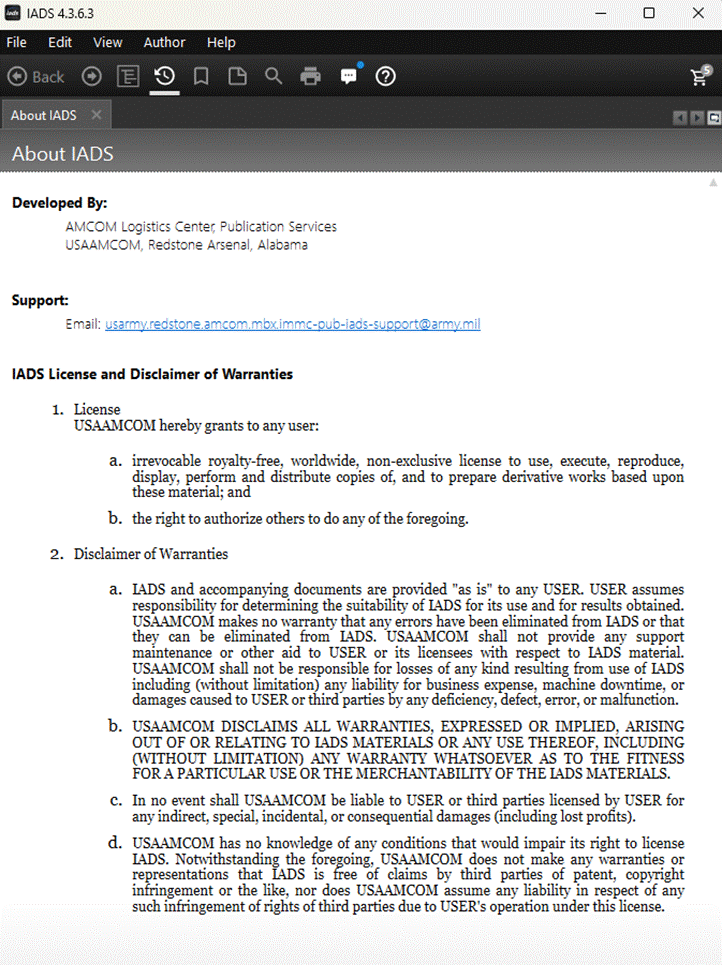
The end user license agreement can be found under the Help menu, “About IADS”:

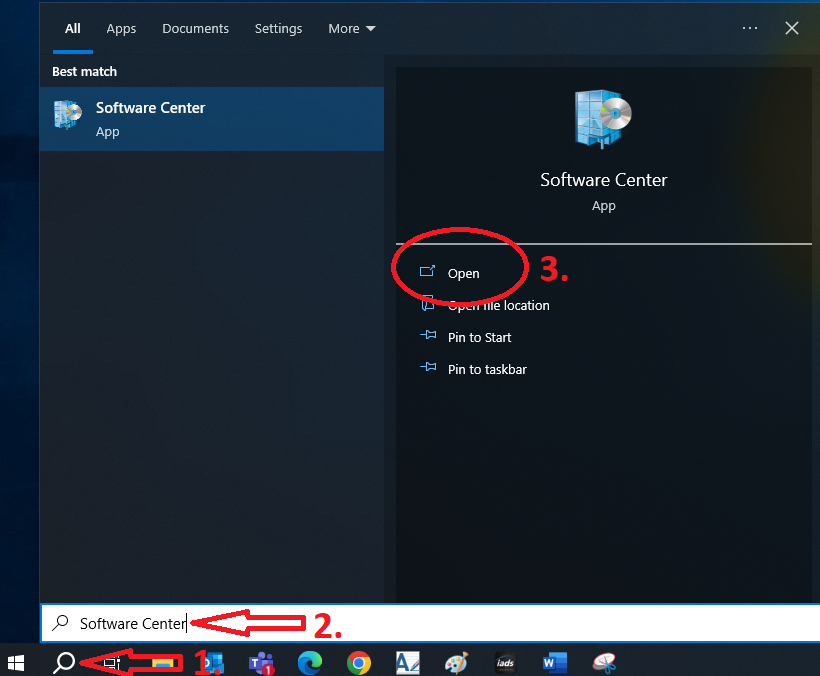
Q: How do I install IADS from the Software Center on my computer?
A: IADS is available in the Software Center on your computer. Select the Single User install option so your installation can receive automatic software updates. For detailed step-by-step guidance on installation (pages 5–9) and opening IETMs (pages 21–24), refer to How to Install IADS and IETM as of 27 Oct 22.pdf
Q: How do I install IADS on a device without internet access?
A: You must run the Multi-User Install option. Download/extract the offline installer zip, right-click IADS_Setup.exe, select Run as Administrator, and choose Multi-User. Do not select Single User, as Single User requires internet access to connect to auto-update servers even on initial install.

Since the device does not have internet, you will need to right click on the “IADS_Setup.exe” and run as admin and choose the multiuser install option. Otherwise, the installer will default to the single user install option, which requires internet access to install bc that version also allows auto updates, and it needs internet to make that connection, even on the first install. Tear Off Tabs Demo
Tear Off Tabs Demo
Q: How do I execute a silent installation or uninstallation of IADS?
A: Use the /S command-line switch to use the silent install option. Instructions are also included in the readme of the installer.

Silent Install:
  • Run IADS_Setup.exe with /S command-line switch to use silent install option.
  • /S must be specified in upper-case
  • ex: C:\extracted_location> IADS_Setup.exe /S
  • License agreement is implied
  • Install type defaults to "Multi-user".
  • Install location defaults to "C:\Program Files(x86)\IADS4"
  • To override install location, use /D=[install location]
  • Do not use quotes even if path includes spaces
  • /D is case-sensitive
  • /D must be the last command-line switch
  • Only backslash '\' character is supported for paths
  • ex: C:\extracted_location> IADS_Setup.exe /S /D=X:\path including spaces
  • Workspace location defaults to "C:\IADS4_Workspace"
  • Assumes .NET 4.7.2 or newer is installed
  • Uninstall can be performed silently as well by adding the /S switch
  • The uninstall executable is found in the folder IADS is installed to
  • ex: C:\Program Files(x86)\IADS4> UNINSTALL.exe /S
Q: What should I do if the installer certificate fails to validate on a non-AGM computer?
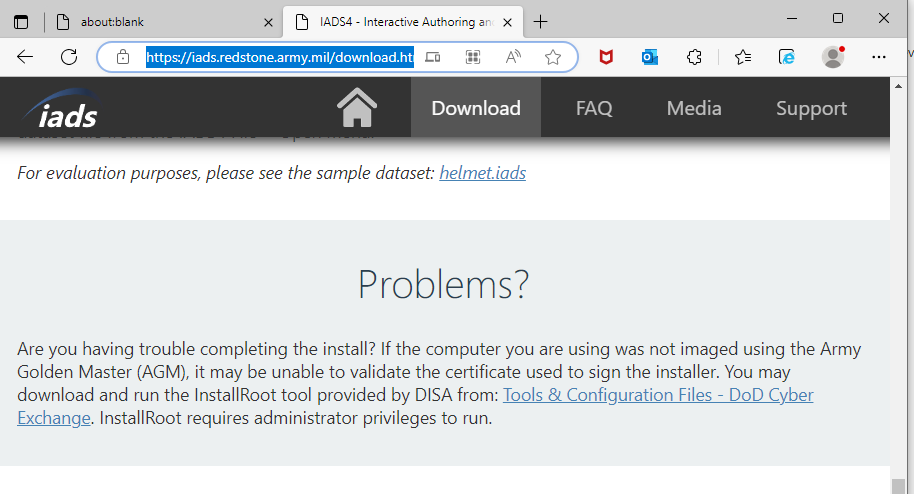
A: If your computer was not imaged using the Army Golden Master (AGM), it may be unable to validate the certificate used to sign the installer. You may download and run the InstallRoot tool provided by DISA from: Tools & Configuration Files - DoD Cyber Exchange. InstallRoot requires administrator privileges to run. See the download page of the IADS website https://iads.redstone.army.mil/download.html, scroll down to the problems section at the bottom, there is a link to the DISA website for the install root exe. Tear Off Tabs Demo
Q: How do I install the Development (DEV) version of IADS to test bug fixes?
A: Open Microsoft Edge (do not use Chrome or Firefox), go to https://iads.redstone.army.mil/download.html, click the link for “Development Version” and choose “open”, this will install IADS directly to your computer do not “save as” or “download” only open or run, this will add a new icon to your desktop labeled IADS (DEV).
Q: Why am I getting installation/access errors on an AUDS-managed computer?
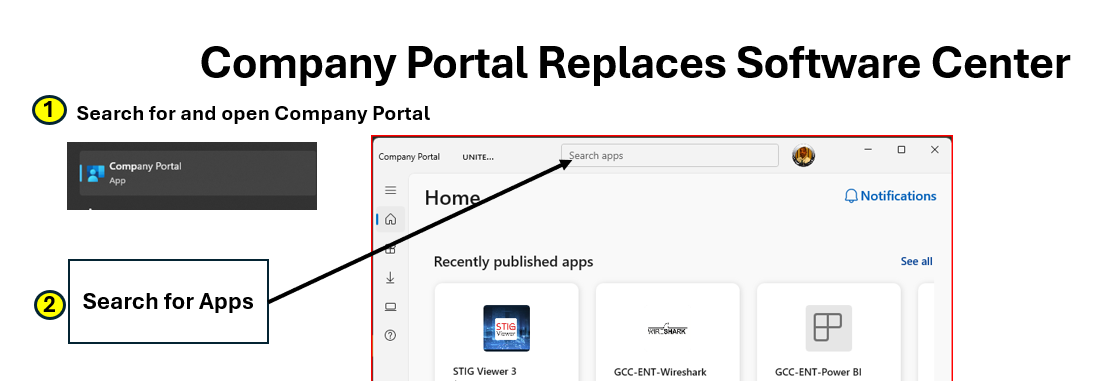
A: AUDS (Army Unified Directory Services) blocks software installs outside of their Company Portal. Install IADS directly through Company Portal (this creates a desktop icon labeled IADS4). If you get an access denied error launching IADS, AUDS has restricted access to C:\.
AUDS - grant users access to folders only
C:\IADS4_Workspace is a default install location and where IADS saves files, when the multiuser install option is chosen during the IADS install or when IADS is installed by an Admin.

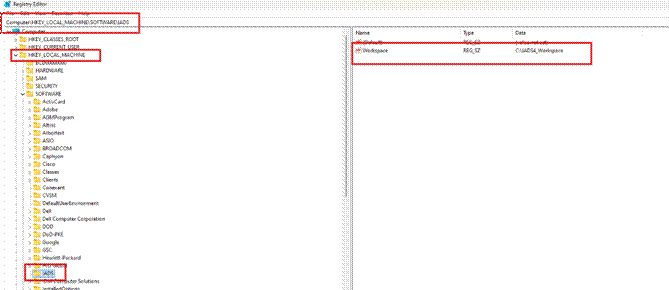
Option #1, if you are the only user of this computer: Your admin can create a folder IADS that IADS can access somewhere else other than the C drive, so that IADS can use that new folder as workspace such as the desktop or documents folder etc, and then have your IT update the registry to point to your new folder instead of the C drive:
AUDS - create folders on C drive You will have to move the .iads IETM files to this new location and then file open all of the IETM so IADS knows to find them in the new workspace location.

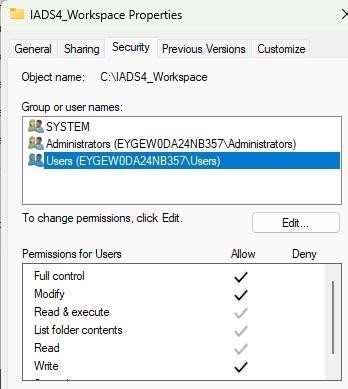
Option #2, if this computer will be shared by multiple users, and requires an IT admin with PAW - Privileged Access Workstation, for AUDS systems elevated access: Log in as ArmyAdmin and create two folders on C: (C:\IADS4_Workspace and C:\ETM_Content) and grant the workstation users access ONLY to these two folders. Opened IADS as Admin and set the C:\IADS4_Workspace folder as the shared workspace. Then from a user's profile, pointed their workspace to C:\IADS4_Workspace. Place the latest ETM content from SharePoint to C:\ETM_Content folder.

AUDS - grant users access to folders only
Opened IADS as Admin and set the C:\IADS4_Workspace folder as the shared workspace. Then from a user's profile, pointed their workspace to C:\IADS4_Workspace. Place the latest ETM content from SharePoint to C:\ETM_Content folder.
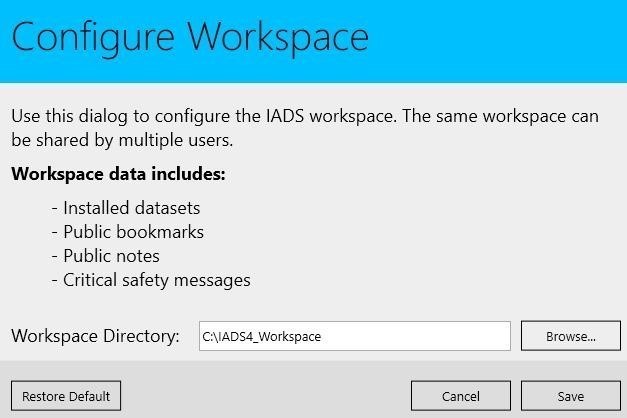
IADS set shared workspace to C:\IADS4_Workspace
Admin creates C:\IADS4_Workspace and C:\ETM_Content, grants users rights only to those folders, then configures the shared workspace inside IADS.
Q: How do I configure a shared IADS workspace for multiple user profiles on an AUDS computer?
A: Have an IT Admin (ArmyAdmin with PAW credentials) create two folders on root C:\ (C:\IADS4_Workspace and C:\ETM_Content) and grant regular Users full permissions to those folders only. Launch IADS as Admin, set C:\IADS4_Workspace as the shared workspace directory, and point user profiles to this path. Store .iads files in C:\ETM_Content.
Q: How do I edit the Registry to update the IADS Workspace path?
A: To update the workspace path via the Registry Editor:
  • Navigate to: Computer\HKEY_LOCAL_MACHINE\SOFTWARE\IADS
  • Modify or create a String Value (REG_SZ):
    Name: Workspace
    Data: C:\IADS4_Workspace (or your chosen path)
Q: Why are there no datasets to select from when I open IADS?
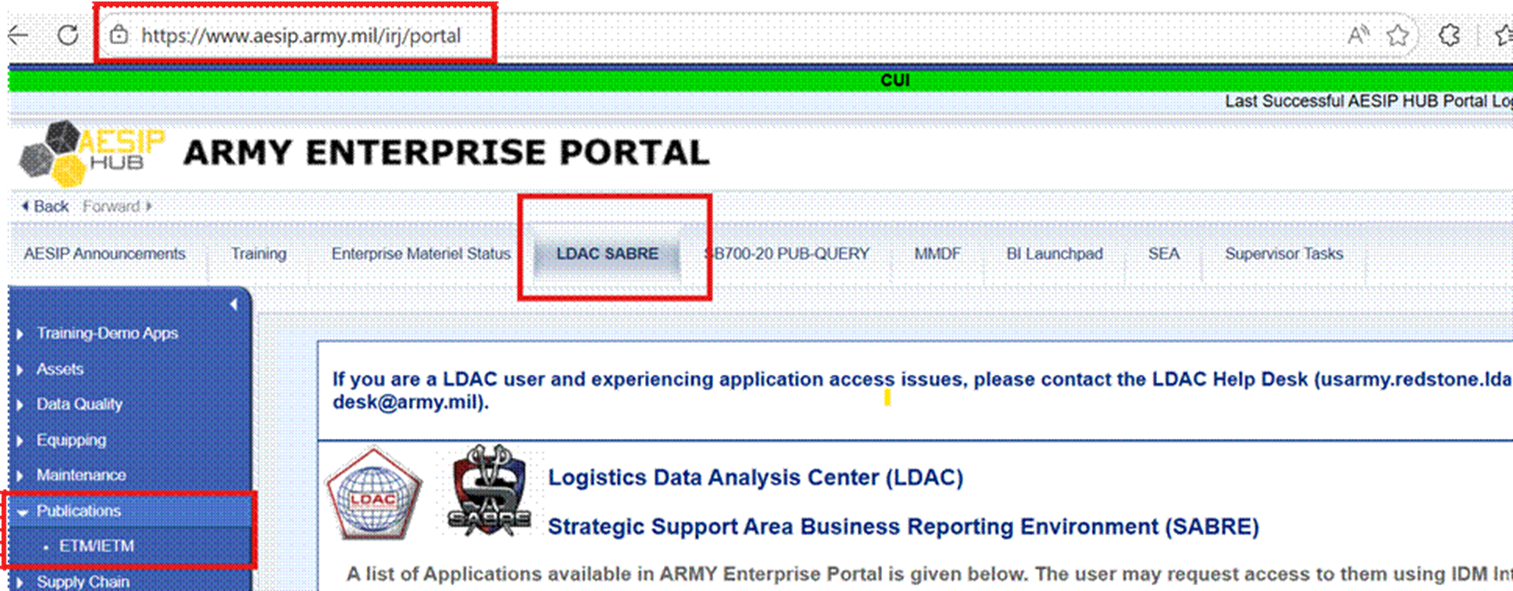
A: IADS is strictly viewer software and does not include technical manuals out of the box. You must download your dataset files from the LDAC ETM Portal (or via AESIP Enterprise Portal). If you need an LDAC account, submit a SAR request at idm.aesip.army.mil for roles Enterprise Basic and AA1_50003, or contact usarmy.redstone.ldac.mbx.service-desk@army.mil.
AUDS - grant users access to folders only

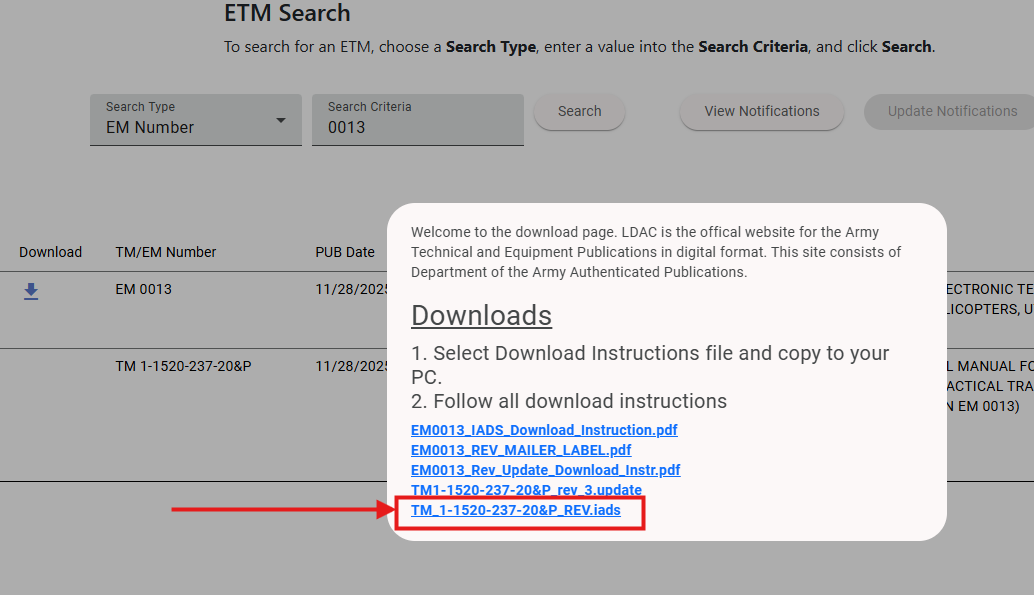
Search for the EM# of the IETM and then click the blue download arrow. If you see an “.iads” file listed, click on it, and select to download/save as, save to a "safe" location on your computer where you can easily find the IETM file and it is not in a temporary folder such as downloads or a temp folder. Once it has finished downloading, open IADS, choose File>Open and then browse to the location of where you saved the file and select it to open.

If you have an ETM account with LDAC you can sign up on the ETM page to receive notifications of new postings.
Registry Editor - IADS Workspace key
Q: How do I check if my technical manual (IETM) is available in IADS?
A: Review the LDAC IETM Sustainment Report and search (Ctrl+F) for IADS: https://apps.ldac.army.mil/etm/ietm-sustainment-report. If listed, go to the LDAC ETM Page https://apps.ldac.army.mil/etm, download the .iads file to a permanent local folder (not a temp/downloads folder), open IADS, and choose File > Open to load it.

Once you have an ETM account with LDAC you can sign up on the ETM page to receive notifications of new postings.
Q: Why won't IADS install or overwrite an updated draft IETM dataset?
A: IADS identifies dataset revisions by reading dataset.xml. If an author creates a new draft without updating the metadata inside dataset.xml (dates/revisions etc), IADS will open the cached dataset because the dataset.xml indicates it is an exact match and IADS will not install it and “overwrite” the existing draft IETM.

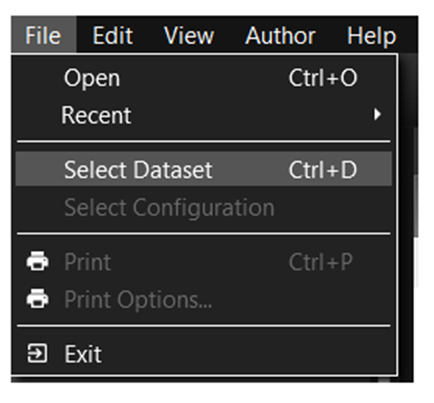
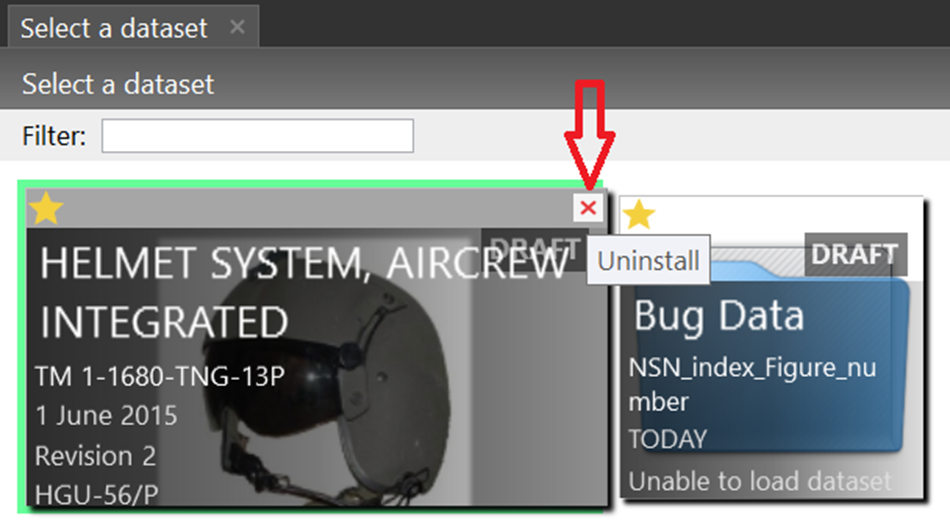
Fix: Under the File Menu, Select Dataset.
Tear Off Tabs Demo Then mouse over the dataset tile for the IETM you need to uninstall “remove”, the X will turn red in the top right corner of the tile, and then choose Uninstall. Tear Off Tabs Demo Then File > Open and browse to the location where the new .iads file is saved for the IETM.
Q: What does the error "Package file cannot be opened. It is either incomplete or corrupt" mean?
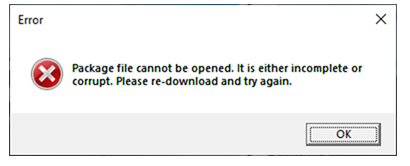
A: This error occurs when your .iads package file is incomplete or locked. Sharing large .iads files over platforms like Microsoft Teams without transfer safeguards can result in partial downloads (e.g., getting an 800MB file instead of the full 1.2GB dataset), leaving critical XML or graphics missing. Re-download the full .iads file from a secure repository like SharePoint or LDAC to resolve the issue.
Package file cannot be opened - incomplete or corrupt error dialog
Example error dialog shown when the .iads package is incomplete or corrupt.
Q: Where can I get a sample IETM file for testing or evaluation?
A: You can download a sample dataset directly from the IADS Download Page or access helmet.iads. End-users can open this single .iads file using File > Open in IADS4. Authors with existing XML data can open the dataset file directly from File > Open.
Q: Installed IETM from CD/DVD – need to move to computer
A: IADS defaults to the location that you selected the .iads files when you file/opened them, if they were on a CD or DVD, that is where IADS will look for them. However, if you copy the files to your computer, network drive etc, remove the CD/DVD, and then open IADS, it will not be able to “find” them on the disc and then you can File > Open and browse to the location where you saved them and then select them to open from that location.
Q: Where are the IADS log files located when support requests them?
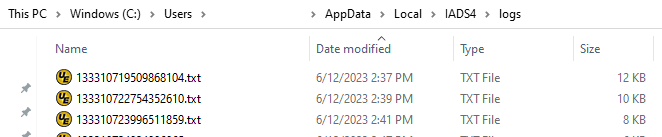
A: Your daily .txt log files are stored at: C:\Users\<your.name>\AppData\Local\IADS4\logs\

Example: C:\Users\your.name\AppData\Local\IADS4\logs\133276190710831767.txt
Package file cannot be opened - incomplete or corrupt error dialog
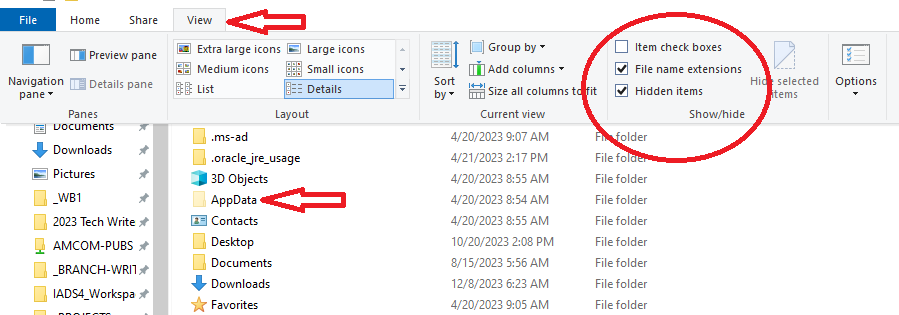
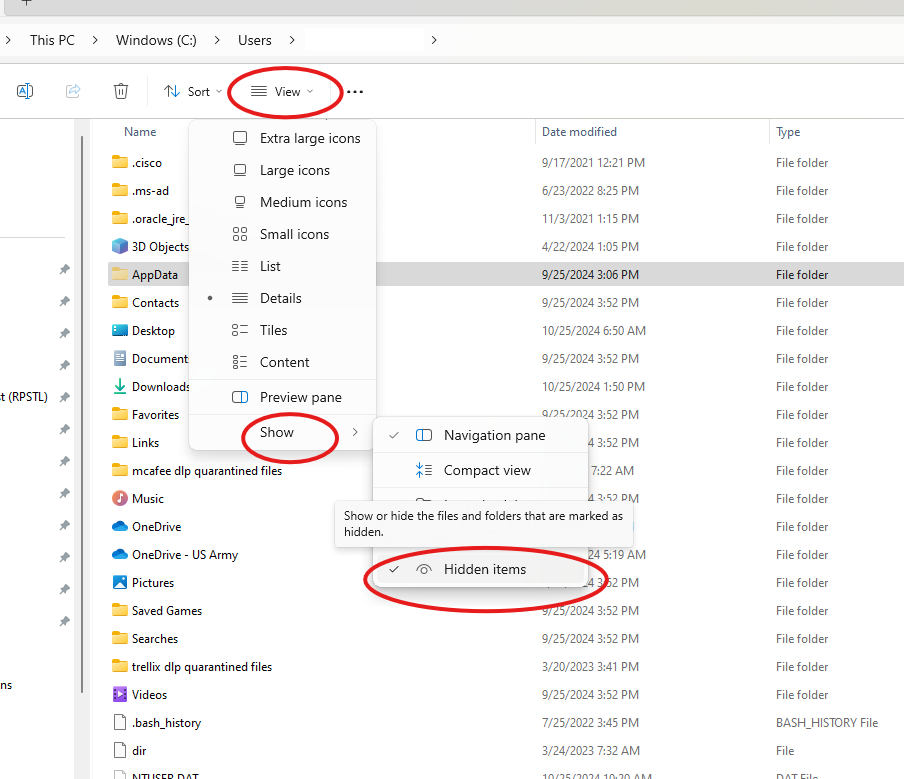
The AppData folder is sometimes defaulted as a “hidden folder”, you can unhide it from the “view” tab in windows explorer and check the box by hidden items (Windows 11): Package file cannot be opened - incomplete or corrupt error dialog
Please send your log files (.txt) from today so we can review them.
Q: How do I force IADS to perform a fresh reset if a dataset has an error?
A: You can force IADS to rebuild its setup from scratch by renaming your local IADS4 folder:
  1. Close IADS.
  2. Navigate to C:\Users\<your.name>\AppData\Local\.
  3. Rename IADS4 to _IADS4 (add an underscore the folder name such as _IADS4).
  4. Reopen IADS. It will launch as a fresh installation, allowing you to re-add your .iads dataset files via File > Open.
The AppData folder is sometimes defaulted as a “hidden folder”, you can unhide it from the “view” tab in windows explorer and check the box by hidden items. You will have to reopen your IETMs because IADS will open as if you have never used it.
Package file cannot be opened - incomplete or corrupt error dialog
Q: What should I do if IADS appears active in the taskbar but is not visible on my screen?
A: This occurs when you disconnect external monitors while IADS is still running, leaving the window off-screen in a disconnected view state.

Does this describe your issue: You have opened IADS and it goes through the loading process, and the icon shows up as an active program in the taskbar, but it is not visible on your screen? If so, have you recently switched your display from laptop to connected monitors (or added/removed monitors)? This can occur if you do not shut down the computer or close IADS before disconnecting, and IADS was still running and active on what becomes the “missing” screen. IADS is likely being displayed in the previous view state of one of the no longer available screens and is actually active, just hidden, in the edge of one of the screens.

Close IADS and then browse to the IADS4 folder and delete the viewstate.xml: C:\Users\your.name\AppData\Local\IADS4\viewstate.xml

IADS saves its last open view “state” in this file, so deleting this file will remove those settings and when you reopen IADS, it should load on one of your currently available screens.
Q: Why can't I scroll through manuals in IADS?
A: Scrolling failures are caused by an outdated Intel graphics driver bug affecting WPF applications. Intel released an update in October 2021, your IT department will need to run graphic driver updates on your computer, they may also need to apply updates from the laptop manufacturer as well.
Q: How do I fix the error "DVtrayApp.exe - The code execution cannot proceed because VCRUNTIME140_1.dll was not found"?
A: This error occurs when Windows cannot locate the Microsoft Visual C++ Runtime. The fix is straightforward: reinstall or repair the official Microsoft Visual C++ Redistributable, not the DLL itself.

Install BOTH official Visual C++ Redistributables:
  1. Go to Microsoft’s official download page https://learn.microsoft.com/en-us/cpp/windows/latest-supported-vc-redist (look for latest supported redistributable version)
  2. Download and install both of these:
    • vc_redist.x64.exe (64 bit)
    • vc_redist.x86.exe (32 bit)
    Even on a 64 bit PC, many apps require the 32 bit runtime.
  3. After installing, restart your PC.
If the installer says “Repair” – Choose Repair, then restart. This fixes corrupted or partially installed runtime files.
Q: How do I fix the error "Could not load file or assembly CefSharp.Core.Runtime.dll"?
A: That error message means that your device is behind on required Microsoft updates, and needs a Microsoft update for C++ Run Time.

https://support.microsoft.com/en-us/topic/the-latest-supported-visual-c-downloads-2647da03-1eea-4433-9aff-95f26a218cc0

https://learn.microsoft.com/en-us/cpp/windows/latest-supported-vc-redist

Q: What should I do if I get an error saying a file path is too long?


Tear Off Tabs Demo
A: Request the log files so you can review them to find out what path may be too long. Example of an overly long path: C:/Users/name/AppData/Local/IADS4/data/[REDACTED]/TM [REDACTED]/[REDACTED] dataset.xml

Close IADS and try shortening it to something like: C:/Users/name/AppData/Local/IADS4/data/[REDACTED]/DEX/[REDACTED] dataset.xml and then reopen the IETM and see if the error goes away.

However there is a registry setting that controls if windows enforces the file path length, if a user suddenly has this issue, their local IT may have modified that setting. To enable long path behavior in Windows:
  1. Open the Start menu and type "regedit" to launch the Registry Editor.
  2. Navigate to HKEY_LOCAL_MACHINE\SYSTEM\CurrentControlSet\Control\FileSystem.
  3. Right-click the value "LongPathsEnabled" and select Modify.
  4. Change the "Value data" from 0 to 1.
  5. Click OK and reboot to activate the change.
Q: Corrupt .json file / no datasets listed
A: The error indicates that the file that controls the list of IETMs you have installed is missing/inaccessible or has been corrupted and will need to be deleted, and then IADS should load empty, and you will need to reopen your IETM data files. Depending on how IADS was installed, your file(s) may be in one of the below places. Find the path for the workspace, look for a file extension of .json, and remove or rename the “installed_datasets.json” and "migrated_datasets.json".

IADS default workspaces are:
  • C:\IADS4_Workspace
  • C:\Users\user.name\AppData\Local\IADS4
  • C:\ProgramData\IADS4_Workspace
  • C:\ProgramData\IADS4

Examples: C:\IADS4_Workspace\installed_datasets.json
C:\Users\user.name\AppData\Local\IADS4\installed_datasets.json
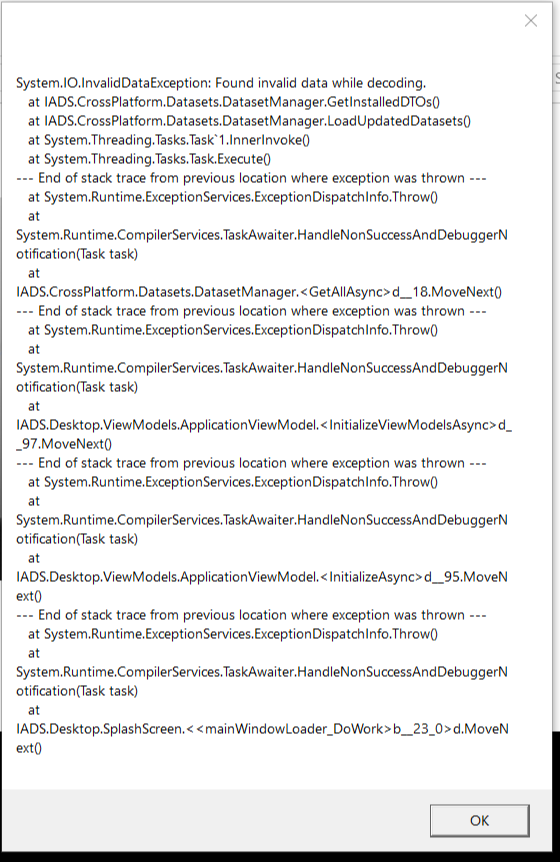
If you are unable to locate the folder, please send a log file from the last time you tried to use IADS, that will contain the location of where your data resources are located.
Tear Off Tabs Demo
Q: How do I export and import notes between different computers?
A: All Notes can be exported into an Excel spreadsheet. To export any of the Note options, click on the Add/View Notes tab on the toolbar. Select Export to save any of the Note options to an Excel spreadsheet.

Here are the steps to follow to export and then import notes from one computer or device to another.
  1. With the IADS Notes window open, click the share icon along the top to open the export/import function.
  2. Select Export Notes and the specific type of notes to export. This will create an EXCEL file that can be migrated to a network drive or other removable media to transfer the data to another computer or device (make sure to follow local security protocols and unit SOP when it comes to removable media).
  3. On the receiving computer or device, repeat Step 1 and, in Step 2, select Import Notes instead of Export Notes.

Link to PS Magazine Article: https://www.psmagazine.army.mil/News/Article/2981126/iads-export-and-import-function-enables-sharing-of-notes/
Q: How do I remove multiple notes at once in IADS?
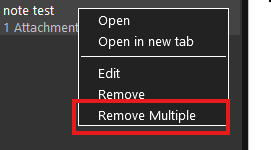
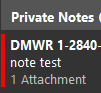
A: In IADS version 4.3.6 and newer, right-click on any note and select Remove Multiple. Click each note you wish to delete (marked with a red bar beside the note), then click Remove. IADS 4.3.6 added a new feature that allows you to right mouse click on a note (any note), choose the “Remove Multiple”
Right-click Remove Multiple notes option
Notes selected with red bar indicator Select the notes you want to remove; the selection will be indicated with a red bar beside the note: Once you have selected all the notes you want to delete, click remove.
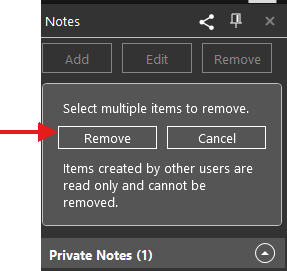
Right-click any note → Remove Multiple; selected notes show a red bar. Click Remove when finished selecting.

Notes selected with red bar indicator
Q: Can I bulk change my notes from Private to Public?
A: We do not have an option to bulk change the note types from Public/Private.

If you only have notes for one IETM, you can use the note export feature to export all of your notes, then close IADS and rename your notes data base SQLite files, Open IADS and your IETM again, and import the notes back, any previously private notes will be imported as public. There is not an option to create private notes from previously public notes.
Q: How can I reset my IADS annotations and attachments without permanently deleting them?
A: You can rename your existing annotation and attachments SQLITE files: C:\Users\user name\AppData\Local\IADS4\attachments.sqlite
C:\Users\user name\AppData\Local\IADS4\annotations.sqlite This will remove them from IADS but preserves them if you needed to access them again.
Q: How do I enable NotesSuperUser permissions in the Registry?
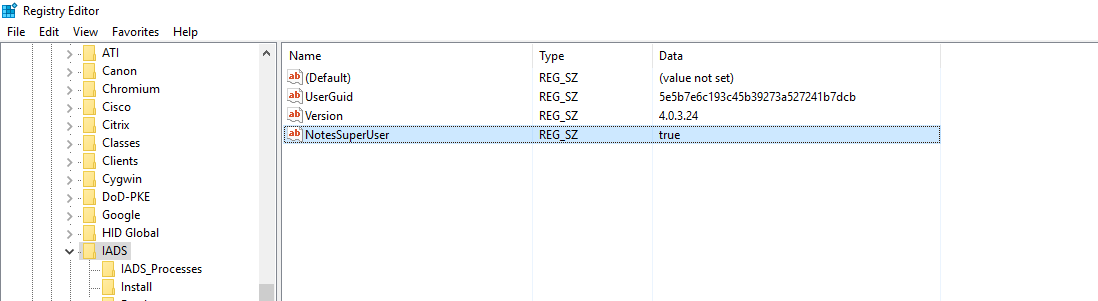
A: For authors of extended notes packages, example CCAD Engineering. You will need to add a registry key with the name "NotesSuperUser" with the value "true" at the following location: HKEY_CURRENT_USER\SOFTWARE\IADS.
Select Edit, New, String Value.

Value Name: NotesSuperUser
Value Data: true

Reference Screenshot:
Tear Off Tabs Demo
Q: How do I post AMAM/ASAM Safety Messages in IADS?
A: For the IADS IETMs you will use the critical safety message feature (under the notes menu), the instructions for posting these messages/attachments can be found in GEN-20-AMAM-04, para 8. TECHNICAL PROCEDURES/INSTRUCTIONS.

Once you have created the messages and attachments, you can export them so they can be shared, and imported to the other computers in your unit.

Guidance from the PEO AVN, PM Utility Helicopters, Readiness & Fleet Management (UH60 office, similar should apply to CH47): For all AVN MSG directed "Additions" to the IADS hosted TMs, the UHPO R&FM team is instructing maintainers to post the changes to WP 0001 "Safety Message Summary" until the newly added WPs are incorporated elsewhere during a later TM change cycle. If the AVN MSG provides an "update" to an existing WPs, the maintainer can simply post the AVN MSG to the existing WP location. Posting the AVN MSG WP "Additions" to the "Safety Message Summary" should be considered an enterprise standard for previously unincorporated WPs within that IETM dataset. The "Safety Message Summary" WP provides a consolidated reference page to record compliance with all directed pen and ink changes within the IETM dataset.
Q: Can I print an entire IETM to a single PDF document in IADS?
A: No. IADS is an interactive IETM viewer software, not a bulk PDF publishing tool. The print capability in IADS is designed for convenience when you need physical hard copies of specific procedures or work packages around equipment. Standard PCs/laptops do not have the RAM required to load and render thousands of pages (up to 40,000+ pages for large systems) into PDF memory. When the Army used to publish PDF equivalents of large IETMs, that process required a dedicated server and would take 24-72 hours of non-stop publishing to create 20+ volumes of PDF files.
Q: How can I automate printing Work Packages to PDF using a PowerShell script?
A: You can run the protocol command iadsx:command=PrintPDF;param=<WPID_or_FilePath>. Ensure the target IETM is open in IADS and that "Enable Multiple Instances" is turned OFF in user settings. Test syntax in Windows Run (Win + R) first.
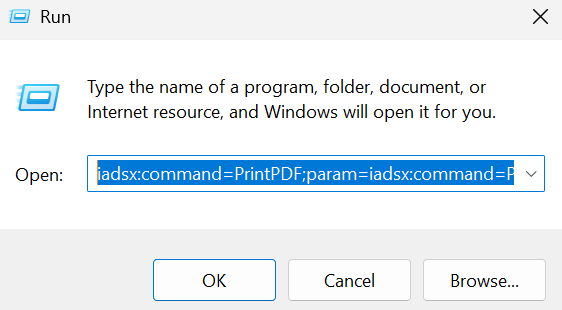
Tear Off Tabs Demo Generated PDFs are temporarily saved to C:\Users\<your.name>\AppData\Local\IADS4\pdf\.... You must script or manually move the PDFs to another folder immediately; closing or crashing IADS will delete them.

Example (WPID):
Write-Output "Executing the first protocol handler command..."
                    Start-Process -FilePath "iadsx:command=PrintPDF;param=m0004-1-1680-TNG"
                    Start-Sleep -Seconds 5
                    Write-Output "Executing the second protocol handler command..."
                    Start-Process -FilePath "iadsx:command=PrintPDF;param=t0003-1-1680-TNG"
                    Write-Output "All commands executed successfully. Exiting script."
                    exit
                    
Wiki for other commands: https://iads.redstone.army.mil/wiki/iadsx/page672511311.html
Q: Why is the 2028 greyed out / not available?
A: ARCYBER put the 2028 site website behind reverse proxy in December 2023. Starting with IADS 4.3.3 that was released in February 2024, IADS was updated to work with the reverse proxy. Due to the reverse proxy, 2028's now require a CAC to submit and check status, we have also added an email button for the users without a CAC.

If you have an older version of IADS that predates version 4.3.3: You can go to our website and install the newer version of IADS directly from there (using Edge): https://iads.redstone.army.mil/download.html
Click the Online Version link and choose "open", this will install IADS directly to your computer (do not "save as" or "download" only open or run).

If you cannot install the newer IADS version, or you do not have a CAC, you can create/save your 2028's in IADS and email the PDFs to the AMCOM 2028 mailbox: usarmy.redstone.amcom.list.immc-pub-redstone-2028@army.mil
Q: What should I do if the 2028 submit button is missing for TM 9-2320-387-23&P?
A: The Program Office omitted the reporting info in this dataset. They are aware of the issue. In the meantime, you can use the 2028 PDF created from IADS to attach and submit your 2028 by email or use the TULSA website. 2028s for TACOM IETMs should be sent to usarmy.detroit.tacom.mbx.ilsc-tech-pubs@army.mil TULSA website https://tulsa.tacom.army.mil/
Q: How do I build a bug report dataset to send to support?
A:
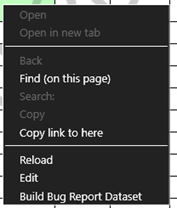
  1. With the file that has the error open in IADS, hold the Shift key and then right click, choose the option for Build Bug Report Dataset IADS Auto Update cannot be installed error dialog
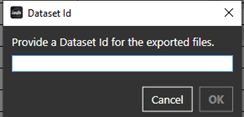
  2. Windows Explorer will open to “Select the folder to save export to” browse and select the folder location you want the bug report export to be save in.
  3. The next prompt is for you to enter the name of the folder IADS is going to create for the bug report export and save to the folder selected in Step 2. IADS Auto Update cannot be installed error dialog *NOTE* if the bug is related to a linking issue, you will need to create a bug report for BOTH files and merge into a single bug report.
  4. Zip the bug report folder.
  5. Send the zipped folder via safe site.
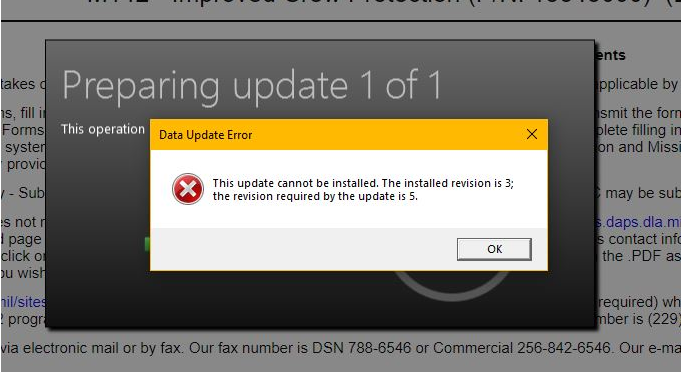
Q: Why does IADS display an "Update cannot be installed" error message?
A: This occurs when your installed revision is multiple versions behind the latest release. Auto-update cannot bridge large revision gaps. You will need to go to the LDAC website and download the full IETM. LDAC updated their website URL in 2021, and the new site requires you to be on a government network or VPN, even for the public side of the website: https://www.ldac.army.mil/#/ Direct link to the ETM page: https://apps.ldac.army.mil/etm Search for your IETM EM#, and look for the “.iads” file in the list, click on it, and select to download/save as, save to your computer, once it has finished downloading, open IADS, choose File>Open and then browse to the location of where you saved the file and select it to open. Once you have an ETM account with LDAC you can sign up to receive notifications of new postings.

IADS Auto Update cannot be installed error dialog
Example of the “Update cannot be installed” dialog when the local revision is too far behind.
Q: How does the IADS automatic update feature work, and how can IT admins configure it in the Registry?
A: The Update feature automatically checks for updates to installed IETMs or for new versions of the IADS software. When updates are available, it notifies users and proactively assists them through the update process. The process of checking for updates to an IETMs can occur using two different methods that are configurable:
  • Catalog-Based (Default): IADS looks for a specific catalog file which will indicate all revisions available for a group of weapon systems. IADS compares revisions available in the catalog file against the one currently installed on the user's system. If newer revisions are available, IADS plots an upgrade path, then notifies the user for download and installation. The download URI for a particular IETM revision is stored in the catalog file.
  • Folder-Based: IADS assumes all available updates are located in a particular file folder. IADS inspects the updates individually to determine the weapon system and revision they represent.
By default, IADS employs the Catalog-Based method using a particular IADS-supported catalog file. Update files are pulled from a LDAC-controlled site. Currently, CAC authentication is required to download update files for all methods. However, much of this process can be custom configured using the registry.

All registry settings that affect the Update process are located in HKEY_LOCAL_MACHINE or HKEY_CURRENT_USER under \Software\IADS\Update
(Caveat: IADS is a 32-bit application, so in some circumstances settings may be stored in: "\Software\WOW6432Node\IADS\Update").

Setting Name: "Method" – Expected Value: "Catalog" or "Folder"
Setting Name: "CatalogFile" – URI identifying the catalog file
Setting Name: "SourceFolder" – local or network folder for Folder-Based method

Example for Folder-Based:
HKEY_LOCAL_MACHINE\Software\IADS\Update\Method = "Folder"
HKEY_LOCAL_MACHINE\Software\IADS\Update\SourceFolder = "C:/IADS/IETM Updates"
Q: How do I disable IADS update Notifications?
A: Notifications can be disabled in the registry setting:

Registry key/value: HKEY_LOCAL_MACHINE\SOFTWARE\IADS
Name: SoftwareUpdateNotificationsOn
Value: 0 (REG_BINARY)

Example:
Key Name: HKEY_LOCAL_MACHINE\SOFTWARE\IADS
Class Name: <NO CLASS>
Last Write Time: 4/4/2024 - 2:20 PM
Value: 0
Name: SoftwareUpdateNotificationsOn
Type: REG_BINARY
Data:
Q: How do I contact LDAC or request an LDAC ETM account?
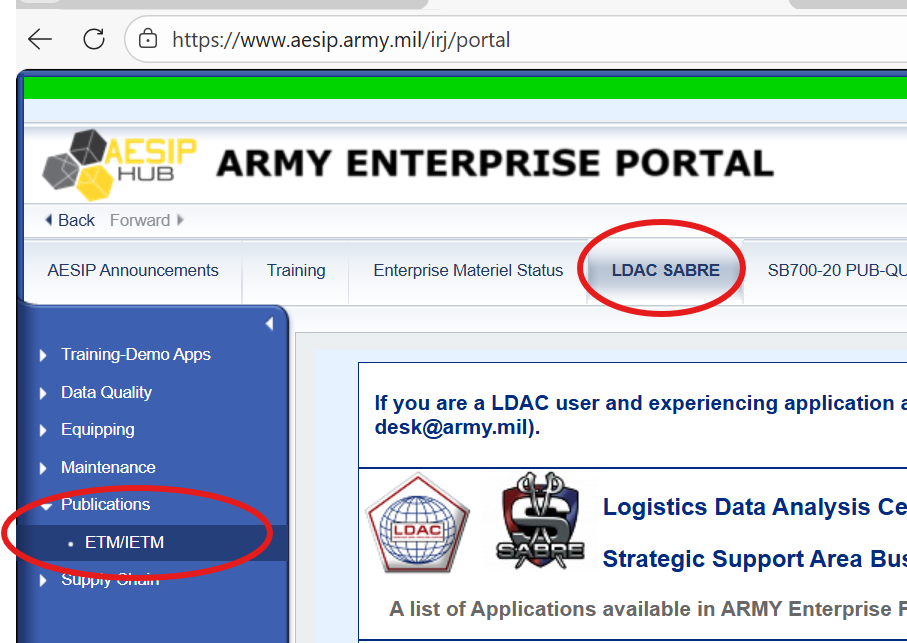
A: Try accessing the LDAC ETM website through their Enterprise Portal: https://www.aesip.army.mil/irj/portal

IADS Auto Update cannot be installed error dialog If you are not able to access the LDAC website or need assistance with creating an account, you will need to contact LDAC customer support:
Email: usarmy.redstone.ldac.mbx.service-desk@army.mil

Toll Free: 1-866-211-3367  |  Commercial: 256-955-7716  |  DSN: 312-645-7716

Link to LDAC ETM website: https://apps.ldac.army.mil/etm

Requesting an LDAC ETM account
  • You will need to submit a SAR for Enterprise Basic and ETM Access.
  • Go to https://idm.aesip.army.mil, view your current roles via the MY ACCESS tab.
  • Ensure all categories under MY INFORMATION are updated. After completing this step, select MANAGE DOCUMENTATION. Upload your Cyber Awareness and Army User IT Agreement if outdated.
  • After updating all information and uploading documents select the REQUEST ACCESS tab.
  • Search by role for Enterprise Basic in the search function at the bottom. Select the role and add to cart.
  • Search for AA1_50003 and add the role to the cart.
  • Click NEXT at the top. Provide your justification for accessing the roles and submit the request.
For Publications Services information contact: usarmy.redstone.ldac.mbx.logetm@army.mil
Q: What should I do if I get an access error when clicking LDAC links?
A: Access the LDAC ETM site through the AESIP Enterprise Portal.
Tear Off Tabs Demo If access issues persist or you need an account, contact LDAC customer support at usarmy.redstone.ldac.mbx.service-desk@army.mil.
Q: Where can I find help desk support for DS VIPER / TMDE / MSD?
A: Contact the MSD/TMDE Help Desk:
Phone Number: 877-564-1137
Email: apats@redstone.army.mil
Website: http://pdtmde.redstone.army.mil/msd_info.htm

For MSD, WATS, and SWICE Support – IADS will be part of future MSD images, but existing MSDs in the field will need your local MSD admin or the TMDE MSD office to install IADS. You can contact them to have the MSD reimaged to add IADS.
Q: Can IADS run in a Linux environment?
A: IADS has an Android app; we can provide an APK file to you for testing in your Linux OS. The “portable” version from our download page https://iads.redstone.army.mil/download.html contains the IADS resource files to custom configure IADS on a VM. This is not a traditional installer. It is a zipped version of all the files required to run IADS. Unzip, customize set up for your VM and run "IADS4.exe".

The current IADS User-Interface (UI) framework is Windows Presentation Foundation (WPF), and there is no Linux equivalent for WPF. Our original POAM for Linux was contingent on Microsoft fielding Linux support for .NET Multi-platform App UI “MAUI”. Linux support is not provided by MAUI at this time.

IADS can be run in LINUX using WINE. There have been some bugs with WINE; these have not been retested recently so they could have been corrected. Older versions of RHEL do not have this issue and Ubuntu works well. The specific issue we ran into with running IADS on WINE under CentOS / RHEL was related to installing dependencies, specifically, .Net Framework 4.7.2 and core fonts both fail to fully install. Debian and its derivative distributions (such as Ubuntu, Pop!, Kali, KDE, or Mint) do not have this issue, and WINE installs correctly. Link to "Running IADS on Linux via Wine" word file under files tab on the IADS Support SharePoint.
Q: What network ports and protocols does IADS require?
A: No ports are required, IADS is a desktop application and requires no external connection for use. IADS can connect externally for update notices and to allow users to submit DA Form 2028’s, but it is not a requirement. Per the security plan: IADS utilizes port 443 for web service communication. IADS is a desktop application. System's local security policies are applied to use FIPS compliant algorithms for encryption, hashing, and signing as well as HTTPS (port 443) using TLS for secure communications to endpoints. Program Manager is US Army Aviation and Missile Command (AMCOM).
Q: Can IADS content or menus be translated into another language?
A: We do not have the capability to translate the stylesheet content in IADS4. We do plan to offer this capability in IADS5, and allow a replacement text file that would translate IADS menus and stylesheet generated text to another language. IADS will not interpret or provide the translations, it will be the responsibility of the program office that requires a country specific text to create, maintain, and provide the translation files. We do not have a confirmed date on when that will be available for IADS5.
Q: How are Work Package (WP) sequence numbers managed in IADS?
A: If the author of the IETM is not using the insertwp/deletewp attributes to add or remove files, then the WP sequence numbers will auto sequence from beginning to end. If the insertwp/deletewp attributes are used IADS will preserve the sequencing and add point numbers to the new WPs and also show the deleted WP’s as deleted. The author can also use the wpseq to “hard code” the sequence numbers too; manually hard coding them is not a recommended practice but if the authors will be making frequent changes and is not yet ready to manage the files with insertwp/deletewp attributes, it is an option.
Q: How can I calculate an estimated page count for an IETM?
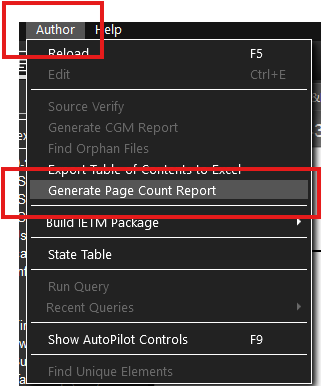
A: The user cannot run an estimate, but an author with the author mode key can run the page count tool:

Under the author menu, you can run the page count tool, it will generate an excel file that gives a rough estimate of page counts based on a document height calculation estimate and word counts. IADS Auto Update cannot be installed error dialog
Q: How do I install and manage IETMs on a personal device using Army Hypori (BYOD)?
A: The Army's Bring Your Own Device (BYOD) has the IADS app pre-loaded when you download and register your own device. You can go directly to the LDAC ETM website and download the IETM files to Hypori. Preferred method is to upload them from your network (NIPR) computer to yourself in Teams or OneDrive (Hypori has 14GB of storage including the applications, so storage space is very limited). Once you have installed the IETM files in IADS, you can delete them from the downloads folder in Hypori if you need to make room to download other IETMs; once "installed" the IETM files are copied to a storage container within the application and are not being accessed from the download folder anymore.
Q: OneDrive requires download every time it is opened in IADS. Why does this occur?
A: This occurs because the “Files On-Demand” has been set for the directory where your IETM files are located. You can turn this off/on and also set files/folder to “Always keep on this device.” See Microsoft support: OneDrive Files On-Demand

If a OneDrive file has a blue cloud icon instead of a green icon, it means that the file is not available locally on your device. When you click on a file with a blue cloud icon, the file downloads to your device so you can open it. This is because OneDrive's Files On-Demand feature helps save storage space on your device, and the files will be downloaded only when you open them. However, this approach requires an active internet connection to work.
Q: What regulations govern the mandatory use of IADS?
A: Please see AR 25-30, AR 750-1, and DA Pam 750-1 regarding the requirement for the use of IADS effective FY24. They can be found on the APD website: https://armypubs.army.mil/
Q: What is the official End User License Agreement (EULA) for IADS?
A:
IADS License and Disclaimer of Warranties

1. License
AMCOM hereby grants to any user:
a) An irrevocable royalty-free, worldwide, non-exclusive license to use, execute, reproduce, display, perform and distribute copies of, and to prepare derivative works based upon these material; and
b) The right to authorize others to do any of the foregoing.

2. Disclaimer of Warranties
a) IADS and accompanying documents are provided "as is" to any USER. USER assumes responsibility for determining the suitability of IADS for its use and for results obtained. AMCOM makes no warranty that any errors have been eliminated from IADS or that they can be eliminated from IADS. AMCOM shall not provide any support maintenance or other aid to USER or its licensees with respect to IADS material. AMCOM shall not be responsible for losses of any kind resulting from use of IADS including (without limitation) any liability for business expense, machine downtime, or damages caused to USER or third parties by any deficiency, defect, error, or malfunction.
b) AMCOM DISCLAIMS ALL WARRANTIES, EXPRESSED OR IMPLIED, ARISING OUT OF OR RELATING TO IADS MATERIALS OR ANY USE THEREOF, INCLUDING (WITHOUT LIMITATION) ANY WARRANTY WHATSOEVER AS TO THE FITNESS FOR A PARTICULAR USE OR THE MERCHANTABILITY OF THE IADS MATERIALS.
c) In no event shall AMCOM be liable to USER or third parties licensed by USER for any indirect, special, incidental, or consequential damages (including lost profits).
d) AMCOM has no knowledge of any conditions that would impair its right to license IADS. Notwithstanding the foregoing, AMCOM does not make any warranties or representations that IADS is free of claims by third parties of patent, copyright infringement or the like, nor does AMCOM assume any liability in respect of any such infringement of rights of third parties due to USER's operation under this license.

The EULA is also embedded in IADS under the Help/About menu option, in the event your IT does not accept the text file.

IADS Auto Update cannot be installed error dialog
Q: What XML elements control Controlled Unclassified Information (CUI) and FMS displays in IADS?
A:
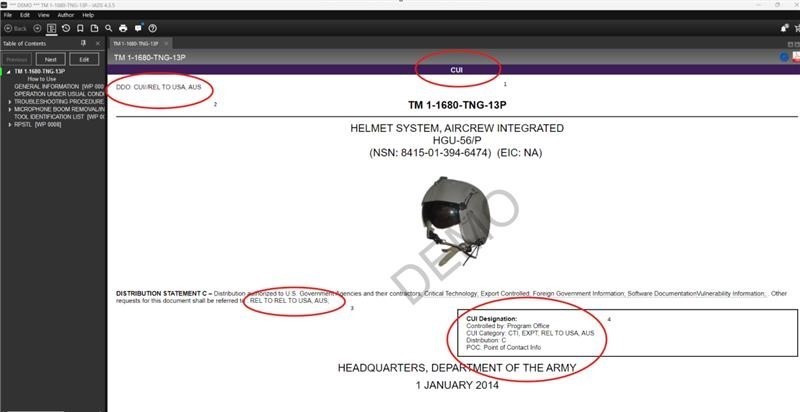
  1. Purple CUI Banner: <frntcover security="cui"> Security attribute with a value of cui must be added to each XML file "work package" / "document" – cannot be edited – changes to this banner are controlled by XML and must be in compliance with the Army MIL-STD 40051 DTD – change request must be approved through LDAC.
  2. FDO/DDO Statement: <FDO>CUI//REL TO USA, AUS</FDO> this is an IADS controlled element in the IADS dataset.xml file, and can be used at the discretion of the XML author. The text inside the element is free text; IADS will display any words contained inside this element in the top left corner of the screen. The DDO statement will auto populate on every file (WP) within the IETM and on printed pages. (FDO is now called DDO but the FDO element is retained for existing users.)
  3. Distribution Statement Release to elements: <rel.to.statement><rel.to.data>REL TO USA, AUS</rel.to.data></rel.to.statement> This is an optional element in the Army MIL-STD 40051 DTD, and can be used at the discretion of the XML author.
  4. CUI Designation Box:
    <cui_set>
      <cntrlby>Program Office</cntrlby>
      <cui_ctgy>CTI, EXPT; REL TO USA, AUS</cui_ctgy>
      <poc>Point of Contact Info</poc>
    </cui_set>
    The Distribution: C is auto generated based on the Distribution Statement – this is not editable and must be in compliance with the Army MIL-STD 40051 DTD.
IADS CUI Banner
Example of Purple CUI Banner, FDO/DDO statement (top-left), Distribution Statement, and CUI Designation Box as rendered in IADS.
Q: Is there IADS training available through CECOM?
A: CECOM offers their own IADS training classes. The POC for CECOM IADS training is Maeli Zacchetti. Contact her for the training schedule for CECOM. Link to their SharePoint: https://armyeitaas.sharepoint-mil.us/teams/PublicationServicesDivision2
Q: What should I do if I encounter diagnostic troubleshooting errors in STRYKER IETMs?
A: The Stryker program office used an incorrect data format for the diagnostic troubleshooting files. The PM is aware of their mistake and is supposed to be correcting the IETM. We recommend that you submit a 2028 to the TACOM ILSC at usarmy.detroit.tacom.mbx.ilsc-tech-pubs@army.mil to report the issue. Download updated files from the LDAC ETM Portal. IADS Auto Update cannot be installed error dialog
After downloading, extract the zip folder, and have your IT admin run the IADS_Setup.exe
IADS Auto Update cannot be installed error dialog
When they are prompted during the install, they should select the Multi-User install option, this method will install to your program files and will not auto update to the current version of IADS.

This will add second icon to your desktop if your previous install was the single user version.

If you are not able to access the LDAC websiter links, you will need to contact LDAC customer support for assistance, they can walk you through applying for an account:

LDAC Service Desk Page
If you are experience a problem with LDAC services or applications, please feel free to contact the LDAC Technical Service Desk at the numbers below:
Toll Free: 1-866-211-3367  |  Commercial: 256-955-7716  |  DSN: 312-645-7716
Email: usarmy.redstone.ldac.mbx.service-desk@army.mil.
Q: Why is the Digital Schematic Tool (DST) link failing in my IETM? How can I acquire the DST software?
A: The Digital Schematics Tool (DST) is not an IADS product, it is an external product from the PM. We have notified TACOM several times that the installer for the Digital Schematic Tool (DST) fails both within the IETM and as a standalone product. Please submit a 2028 to them requesting assistance with DST. You may also contact the TACOM ILSC at usarmy.detroit.tacom.mbx.ilsc-tech-pubs@army.mil to report the issue.
Q: Where can I check the status of the EMS NG to IADS conversion process?
A: The weapon system offices manage their own development and release schedules, we are not included in their processes. The TACOM ILSC should be able to give you a status update, they can be reached at usarmy.detroit.tacom.mbx.ilsc-tech-pubs@army.mil
Q: How do I get support for EMS NG issues?
A: Your local IT Admin will need to install EMS NG IETM Software; if they have any issues they will need to contact the EMS customer support at TACOM Support@EMS-HelpDesk.com
Q: How is IADS distributed across Army enterprise software tools?
A: The NETCOM V-Team publishes IADS via their Announcements section on their SharePoint Online portal and through their distribution email list for deployment through SCCM / MECM.
Q: Search results not working in Version 4.3
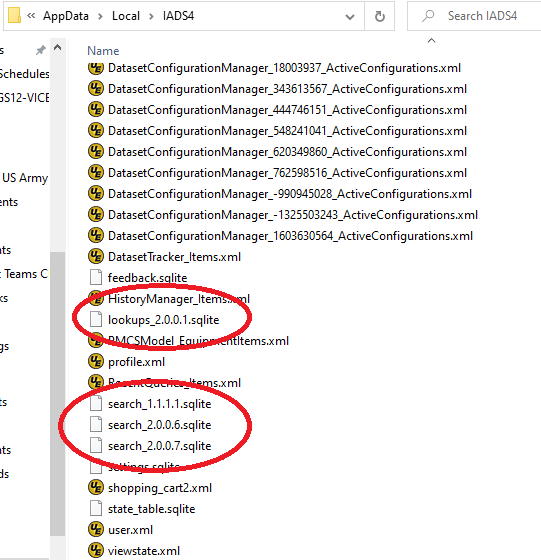
A: Ask for log files (see Log Files location above) and then delete the search and lookup databases: Close IADS, delete your Search SQLite and Lookups SQLite file(s). Tear Off Tabs Demo When you reopen the IETM in IADS, it will take a bit longer to load and to index the first search because IADS will need to rebuild those files from scratch.